
OverShoulder User Guide
Step-by-step instructions for every feature. How to use it, not just what it does.
Installation
- Download — Click Request beta access on overshoulder.ai and answer six short questions. The last one is your computer: the page suggests it when your browser can tell, and you confirm or choose. Downloads open later in November. From then, Download for Mac gives you the file for your Mac:
OverShoulder-x.x.x-arm64.dmgfor a Mac with Apple silicon,OverShoulder-x.x.x.dmgfor a Mac with Intel. OverShoulder runs on macOS 13 or later. - Install — Open the DMG and drag the OverShoulder icon into your Applications folder.
- First launch — macOS asks once whether to open an app downloaded from the internet. Click Open.
- Permissions — macOS asks only when a feature needs it: Screen & System Audio Recording the first time you share your screen (then restart OverShoulder), and Microphone the first time you use voice input or record a meeting. While you share, macOS may also ask to let OverShoulder control System Events and your browser, so it can read the name of the app in front, its window title and the page address.
- Updates — OverShoulder updates itself. It downloads new versions in the background and installs them when you quit.
First Launch & Login
- Launch OverShoulder from your Applications folder. The panel opens near the top-left of your screen.
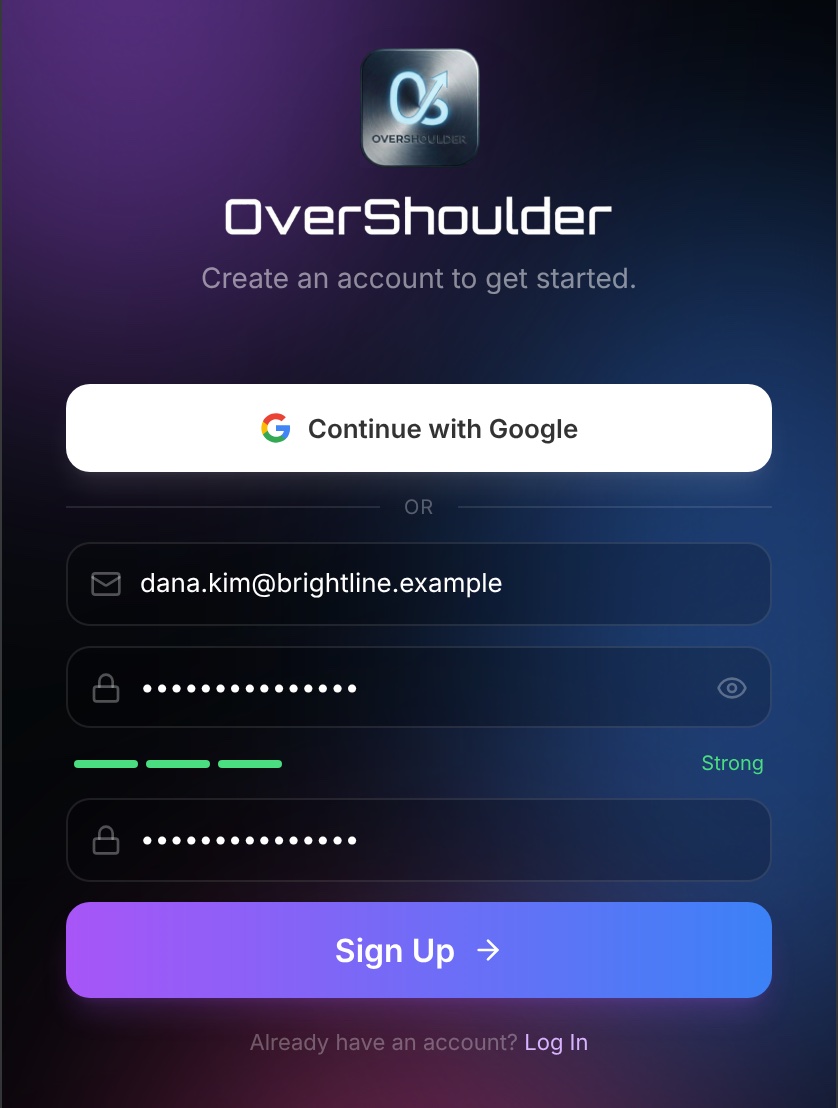
- Click Sign Up. Enter your work email and a password (8 characters or more), tick the box to confirm you're 18 or older and agree to the Terms of Service and Privacy Policy, then click Sign Up and enter the 6-digit code we email you. You can also click Continue with Google. During the beta, only work email addresses can sign up. If the beta is full, you join the waitlist. Already have an account? Click Log In.
- OverShoulder greets you and points you to Cortex at the top, where you connect your first source. Your 7-day free trial starts with 300 credits and every model.
- The panel is a normal window. Click the pin at the bottom to keep it on top. Click × at the top right to hide it, and bring it back with Cmd+Shift+K or the menu bar icon.
Panel Overview
The main panel is divided into these areas from top to bottom:
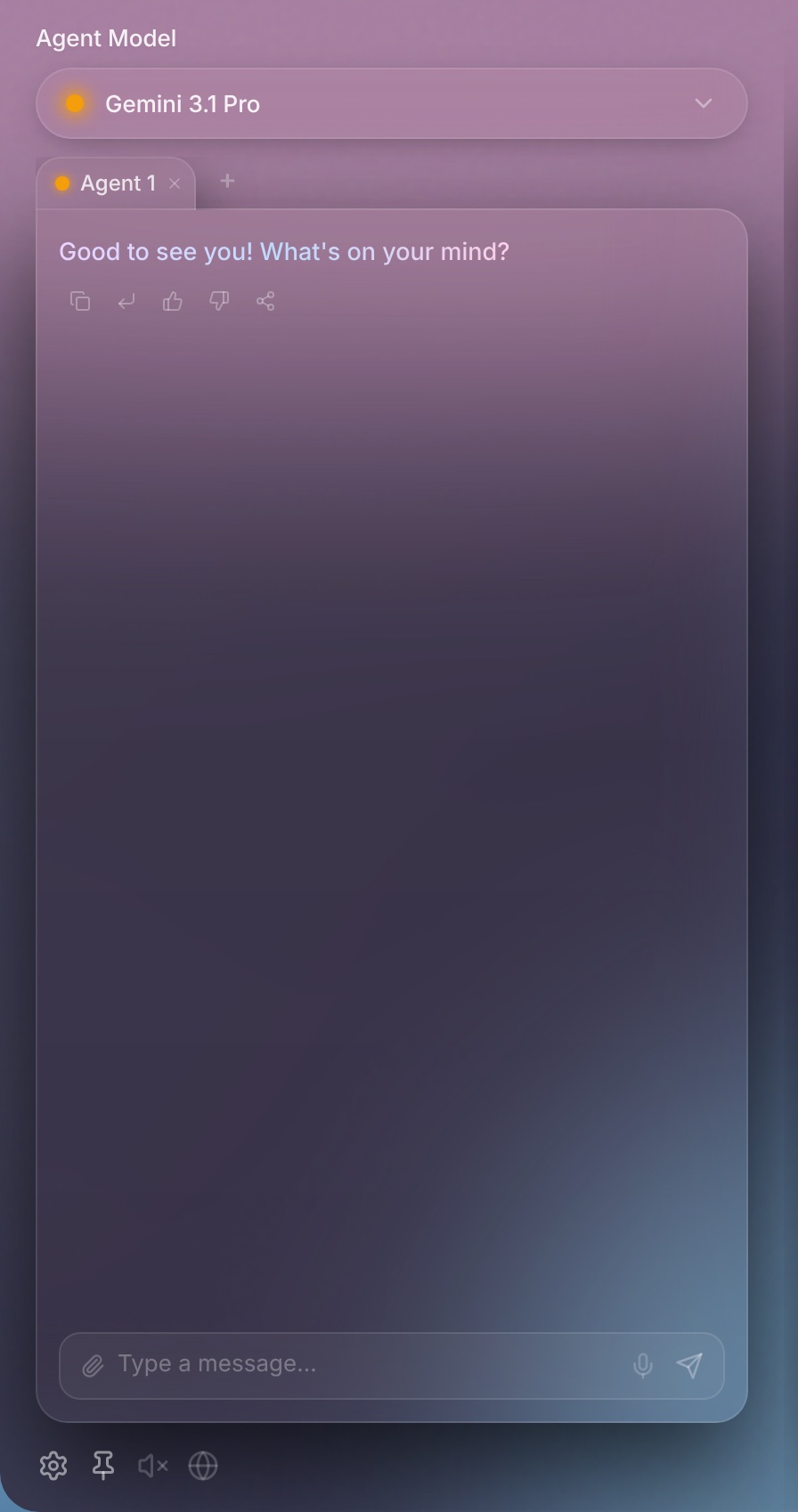
- Top bar — The logo on the left. On the right: ▶ starts screen sharing (■ stops it), the Cortex button opens the Cortex workspace next to the chat, and × hides the panel.
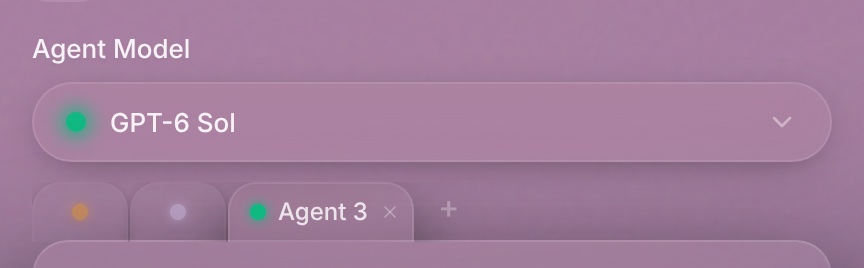
- Agent Model — The model for this tab. Click it to choose another.
- Tabs — Your chats. + opens a new one.
- Chat — Your conversation. When Cortex used your files or memory, the answer shows a "Cortex used…" line.
- Input bar — The paperclip attaches a file, the microphone starts voice input, and the send button turns into ■ while an answer is coming.
- Bottom row — Settings (gear), Pin, spoken replies (speaker) and Browser Reader (globe), with your Privacy mode on the right.
Cortex Home
Click Cortex in the top bar to open the Cortex workspace next to the chat. Its tabs are Cortex, Memory, Skills, Knowledge and Agent Panel (coming soon). The first time, Cortex asks what to call you, what you do, two follow-up questions and where you're based. Then it asks you to connect a source.
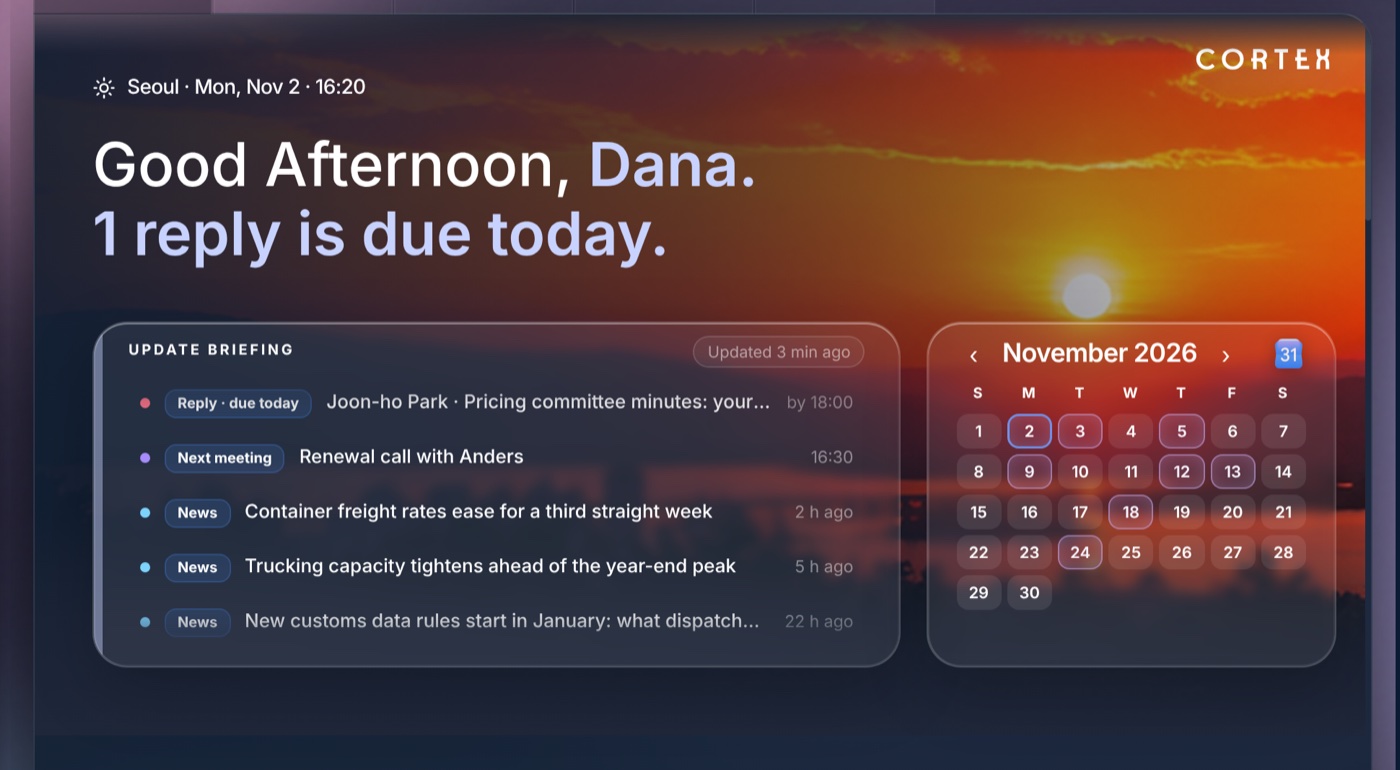
The home page starts with a greeting and what needs you:
- Update Briefing — One list, most urgent first: replies that are overdue or due today, your next meeting today, to-dos Cortex found in your files, then news. News comes from web searches based on what you do and your interests. Click a row to open it. While it gathers news, the header says "Updating · gathering news".
- Calendar — Marks days that have meetings or deadlines. Click a marked day to show it in the Agenda below.
- Knowledge Search — Builds a report, with sources, from your files, memory and decisions.
- Add Category — Creates an area of your work for Cortex to follow. You give it a name and say what belongs in it.
Connect Sources
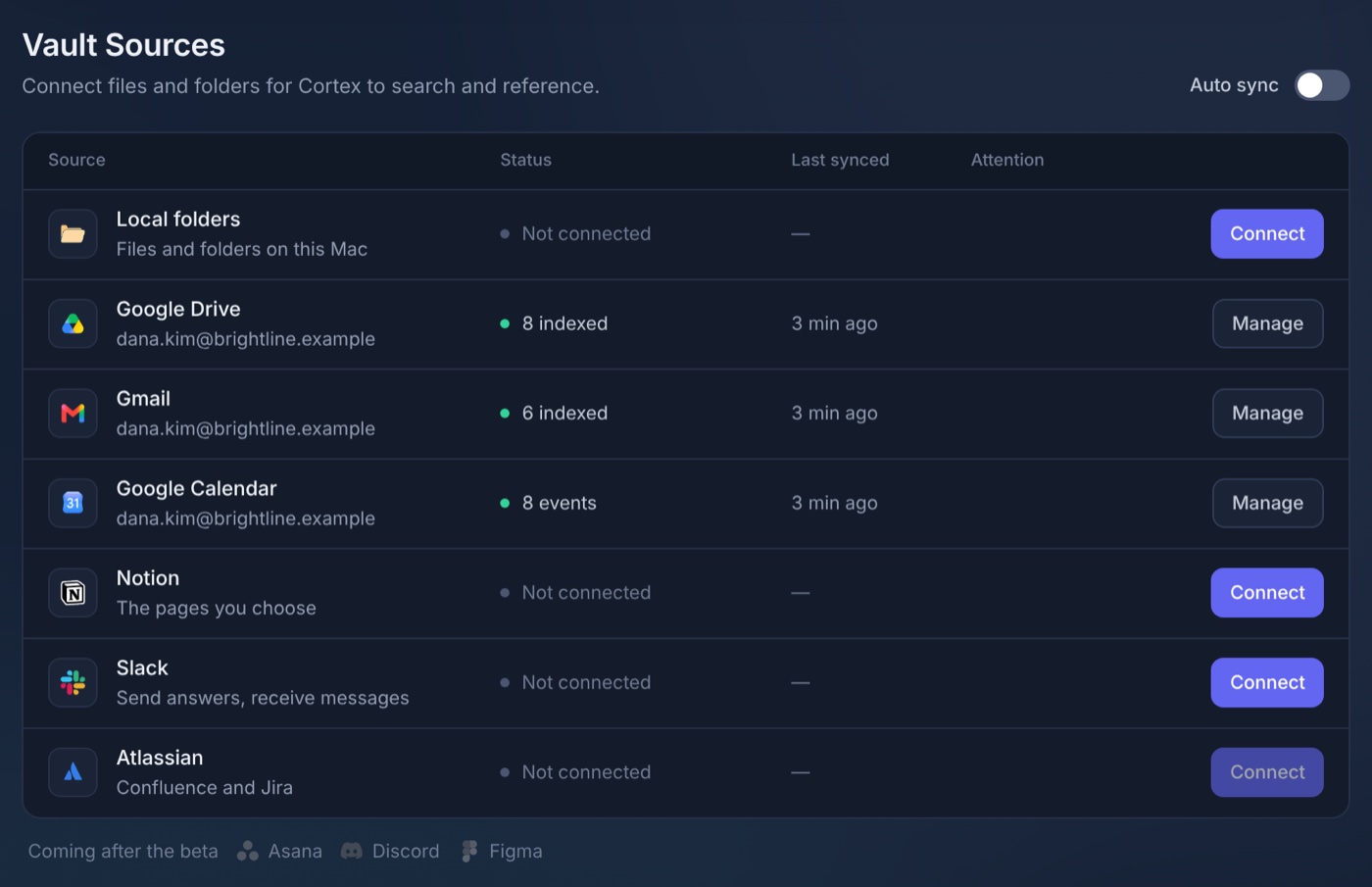
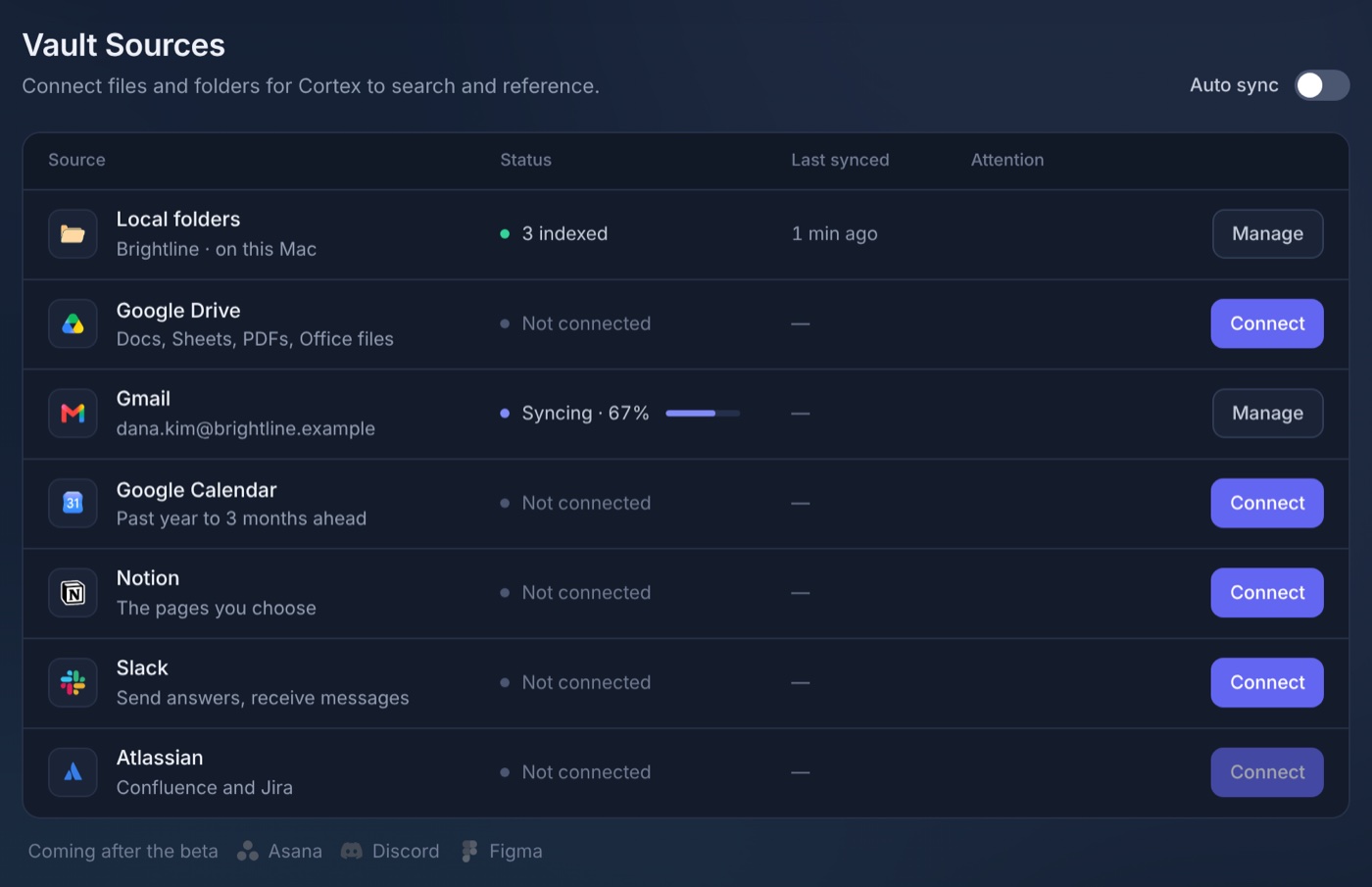
Cortex answers from the sources you connect. On the Cortex home, scroll to Vault Sources and click Connect on a row: Local folders, Google Drive, Gmail, Google Calendar, Notion, Slack or Atlassian (Confluence and Jira). Notion, Slack and Atlassian are coming soon.
Google: Drive, Gmail and Calendar
- Tick the apps you want, click Continue in browser, then sign in and allow access.
- During the beta, Google warns that OverShoulder isn't verified yet. That's expected: choose Continue. Only Google accounts on the beta list can connect, and the panel has a link to ask for yours.
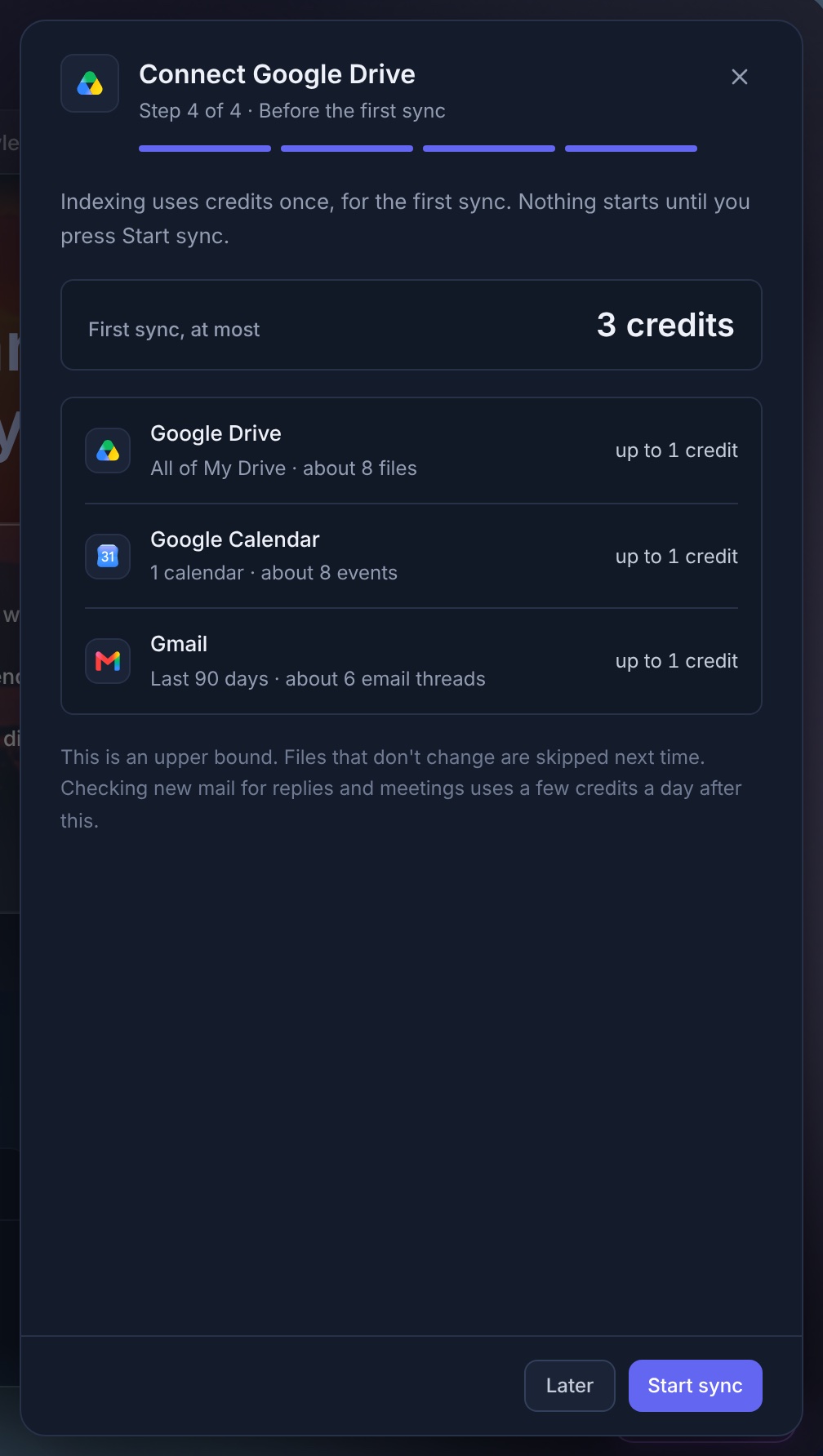
- Check the estimate, then press Start sync. Nothing is read before you do. Indexing uses credits.
- Drive — Docs, Sheets, Slides, PDFs and Office files. Read only.
- Gmail — Your inbox and important mail from the last 90 days, without promotions or social mail. Read only: OverShoulder never sends mail.
- Calendar — Events from 12 months back to 3 months ahead. OverShoulder adds an event only when you add or confirm one.
Notion, Slack and AtlassianComing soon
- Notion — Choose the pages Cortex may read.
- Atlassian — Choose the Confluence spaces and Jira projects, then press Start sync.
- Slack — Works both ways. You can send an answer to a channel or a person, and you can send a Slack message to OverShoulder from its menu in Slack. OverShoulder never reads your channels.
Indexing and Deleting Data
The Knowledge Vault on the Cortex home shows indexing as it runs. First comes an estimate (a rough upper bound; unchanged files are skipped), then the embedding pipeline. Use Sync Vault, Pause, Resume or Stop. If some files fail, click Retry sync.
Cortex reads PDF, Word, Excel, Numbers, PowerPoint, HWP, text, Markdown, code, CSV and HTML files, and images. It reads the text of scanned PDFs on your Mac.
Removing data
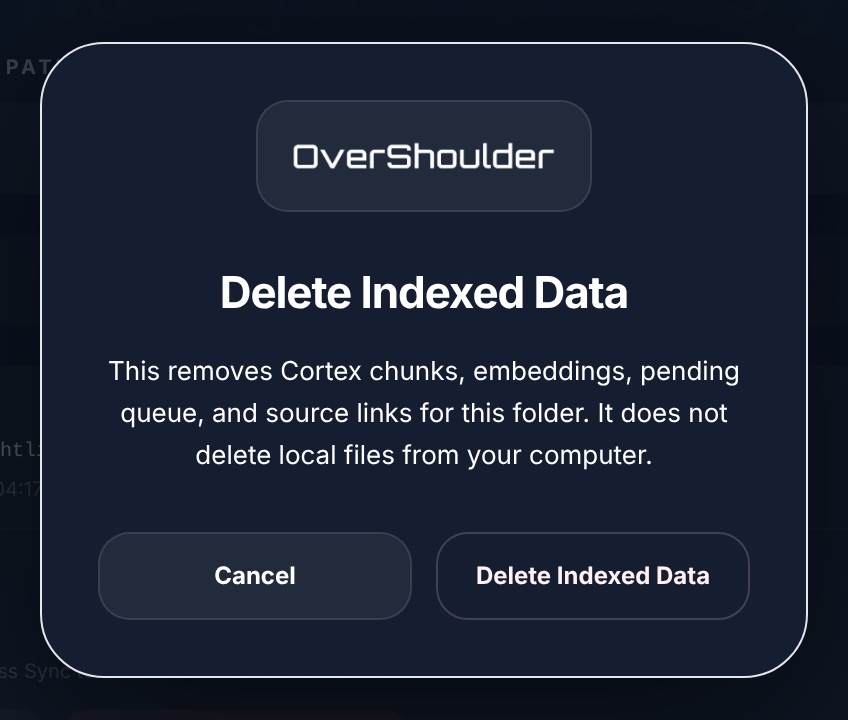
Click Manage on Local folders:
- Disconnect — Stops watching a folder. What it indexed stays searchable until you delete it.
- Delete Indexed Data — Removes Cortex's copy of a folder. Your files stay.
- Reset Vault — Type RESET to clear everything Cortex indexed. Your files stay.
Answers with Sources
When Cortex used your files, memory or a Knowledge Pack, a line appears under the answer, such as "Cortex used 3 local files + 1 memory source". Click it to see the list.
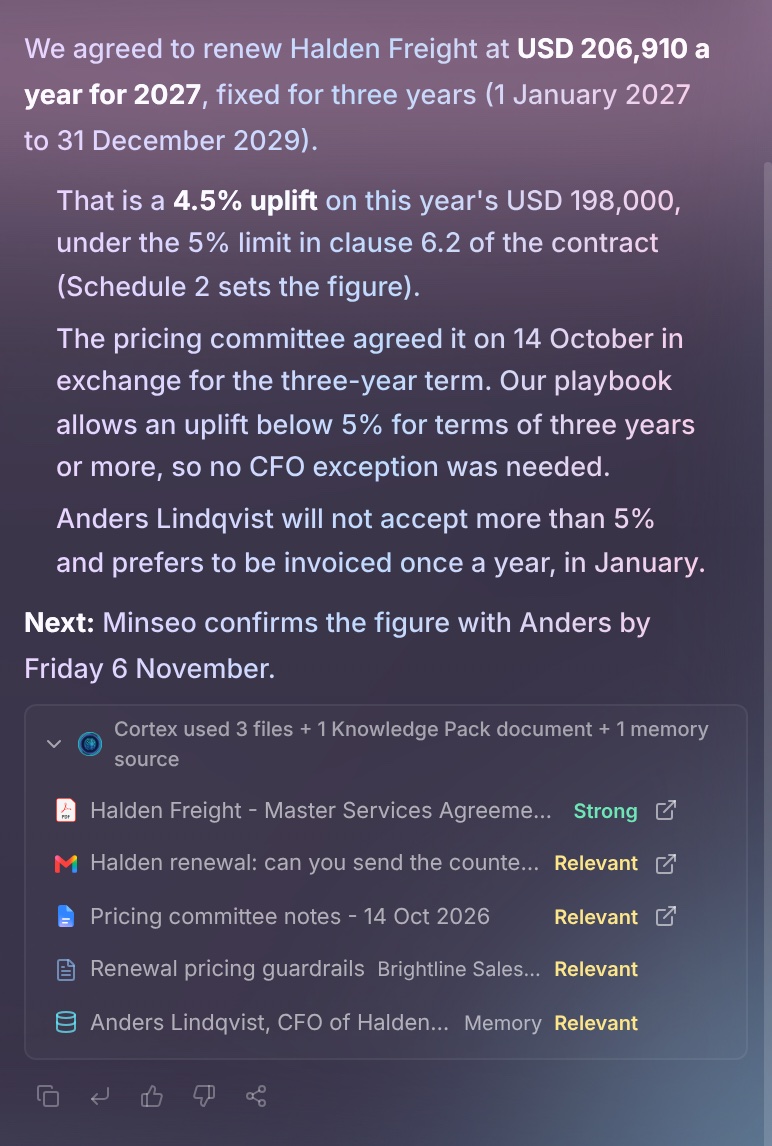
- Each source shows how closely it matched: Strong, Relevant or Weak.
- Click the open icon to open a file, or to open it in its own app, such as Google Drive. Click the folder icon to show a local file in Finder.
- A memory source opens its page or conversation in Memory.
- A Knowledge Pack document shows its pack's name. It can't be opened.
A Strict or Full tag means the answer ran in that privacy mode.
Agenda
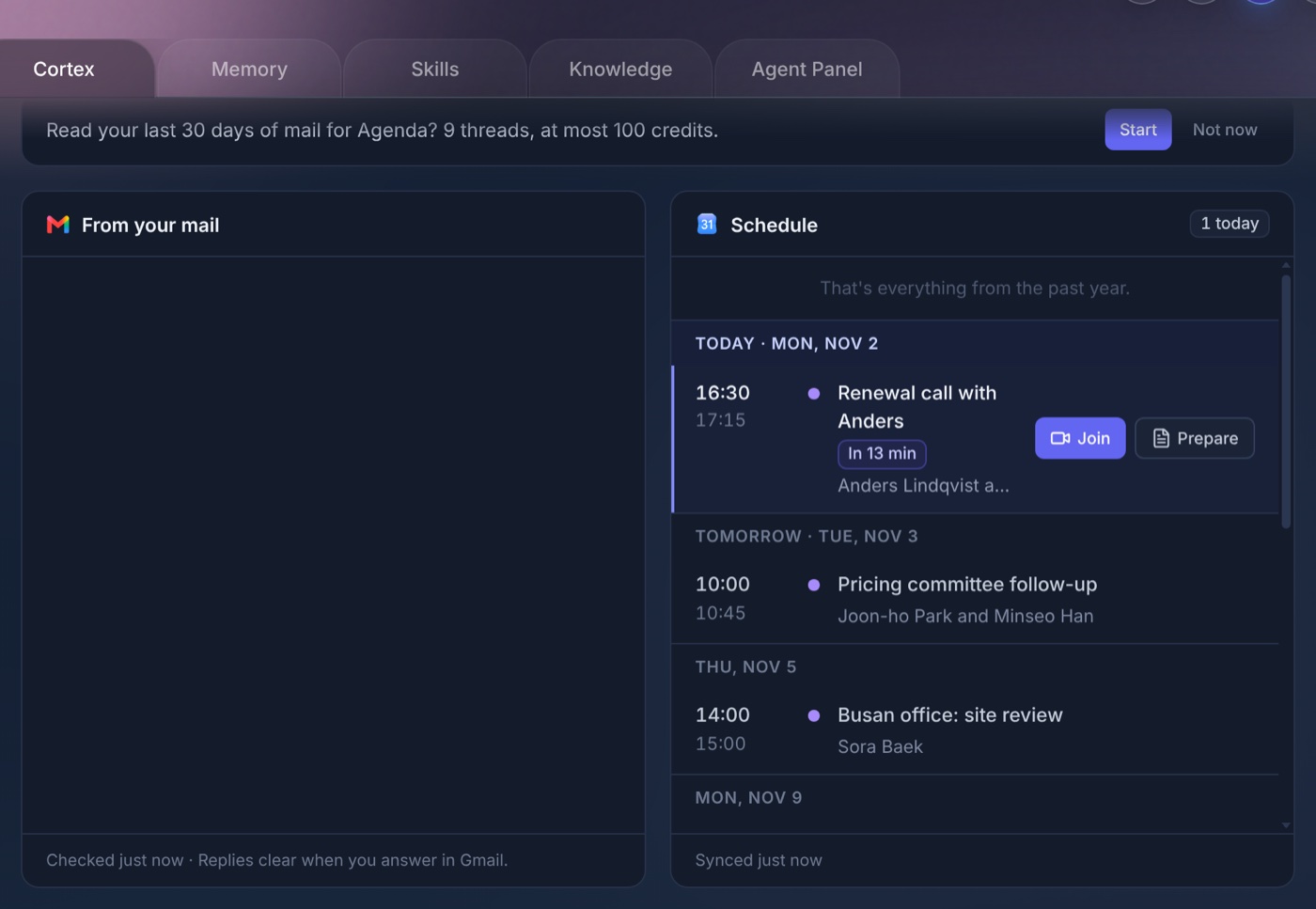
The Agenda sits under the briefing on the Cortex home. It uses Gmail and Google Calendar, and each card has a Connect button until you connect them.
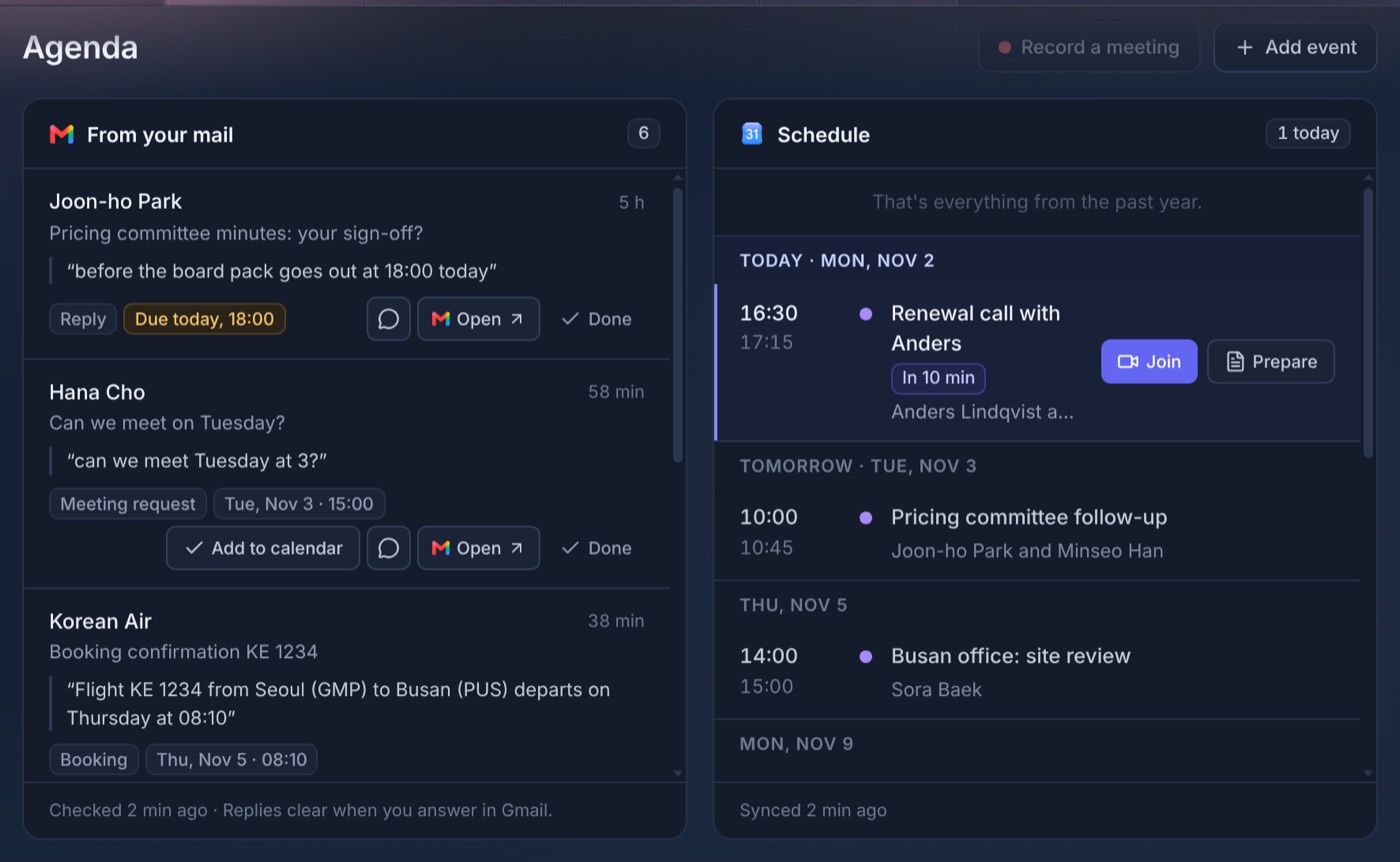
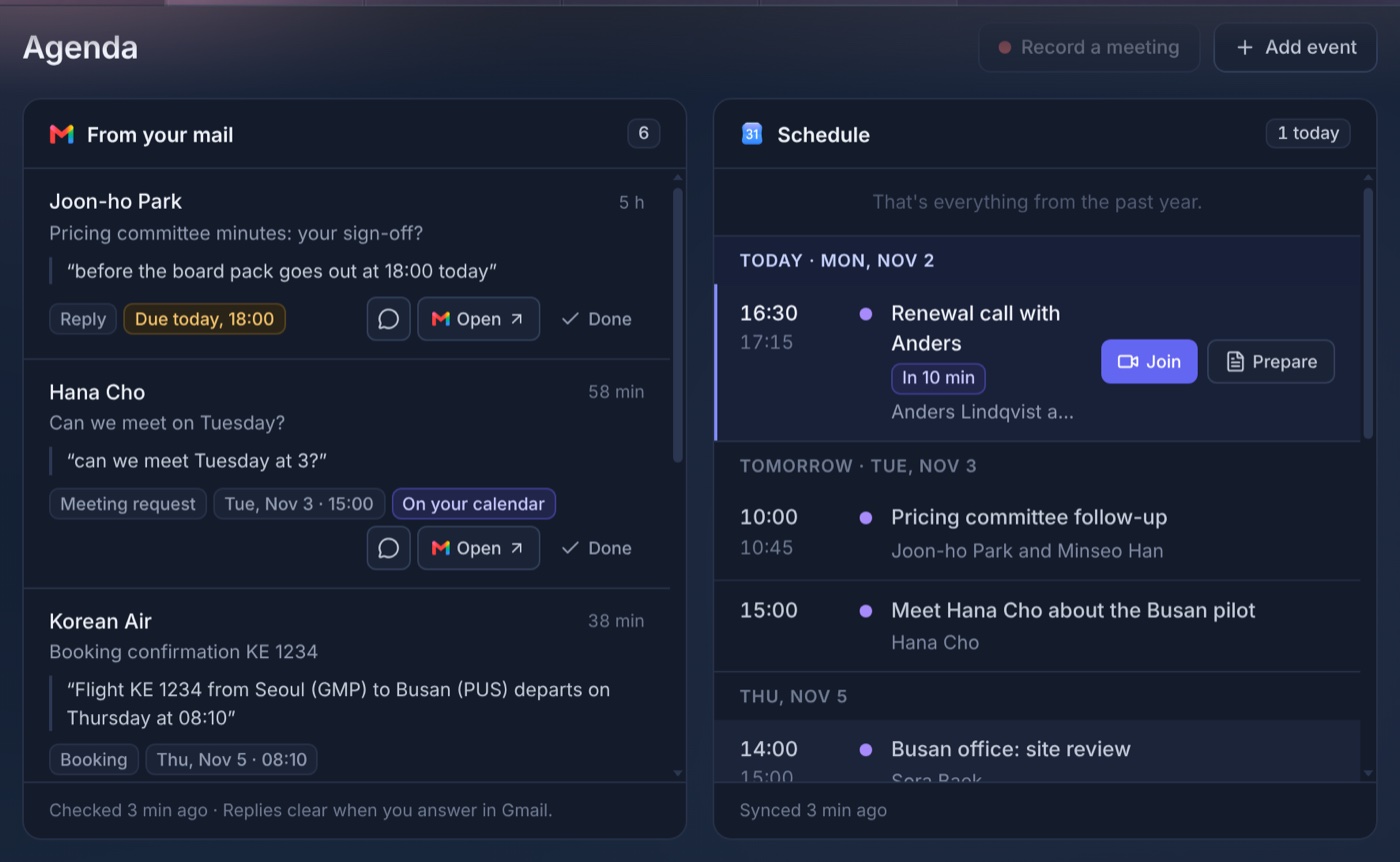
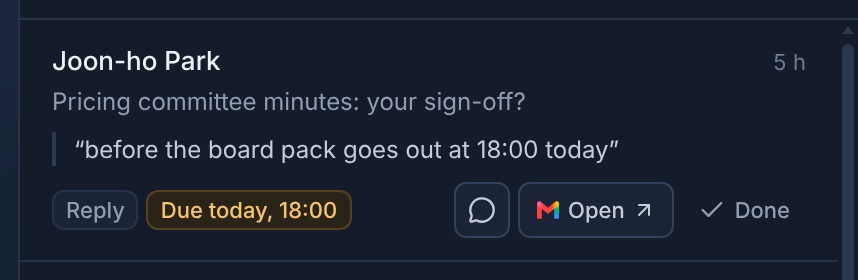
- Coming soonWaiting for your reply — Mail that needs your answer: who wrote and when, the subject and what they said. Open opens the thread in Gmail. Done clears it.
- Schedule — Your events by date. Meetings have Join and Prepare. Coming soonEvents and deadlines OverShoulder found in your mail appear on their date, with Confirm and Dismiss. When Google Calendar is connected, Confirm adds the event there too. Click an event for its details. You can edit or delete events you added.
- Add event — Creates your own event. Tick Also add to Google Calendar to save it there too. It stays in OverShoulder either way.
Coming soonAfter you connect Gmail, the Agenda asks before it reads your last 30 days of mail, and says the most credits it may use. Click Start or Not now.
OverShoulder only reads your mail; it never sends any. Newsletters and other bulk mail (mail with an unsubscribe header) are skipped. To sort the rest, OverShoulder sends parts of each new thread through OverShoulder Central to AI models. See Where Your Data Lives.
Chat about a mailComing soon
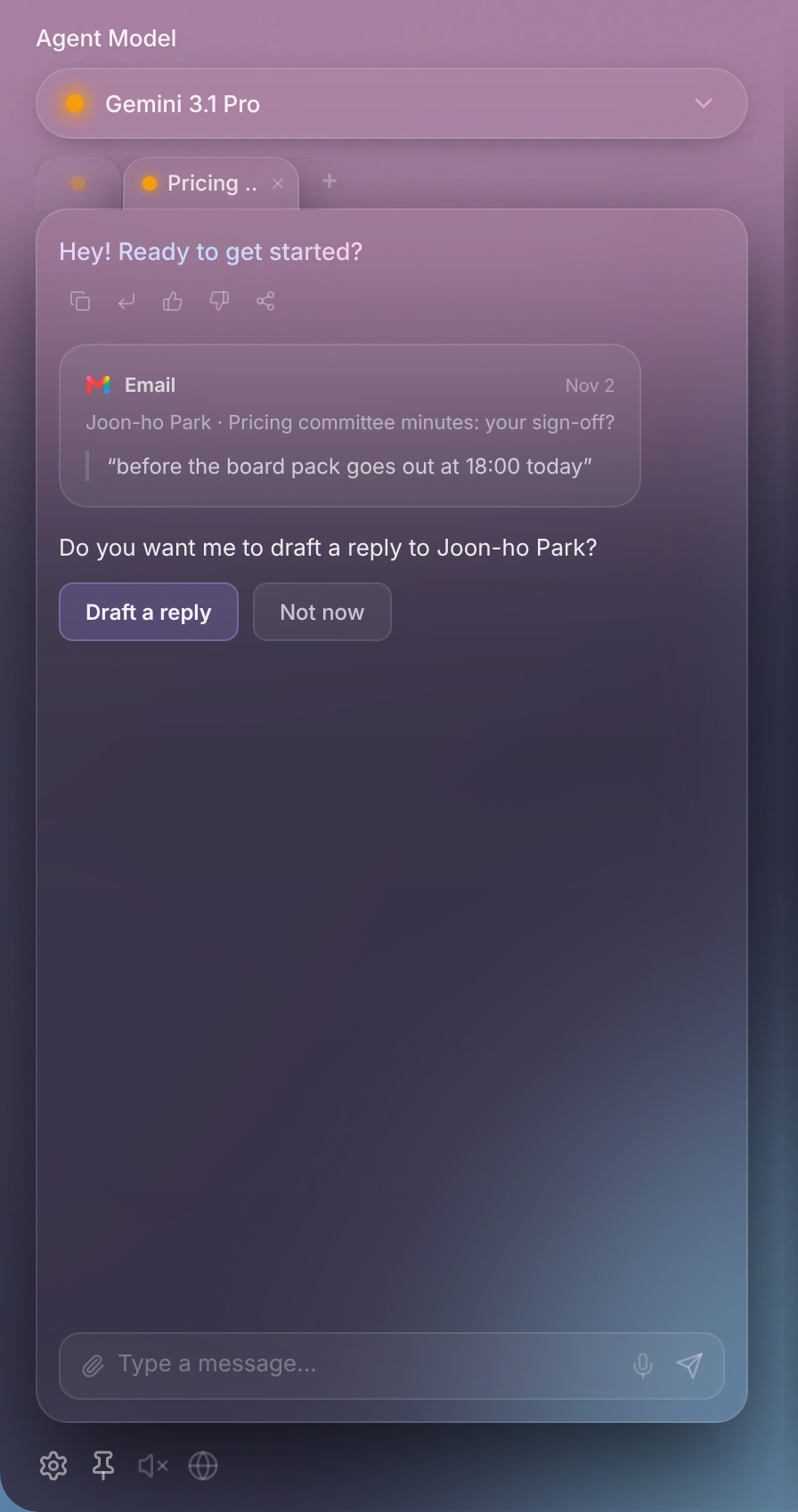
Each mail row has a speech bubble, Chat about this email. Click it to open a chat tab about that mail. The tab shows the mail as a card and asks whether to draft a reply.
- Draft a reply — Writes a draft from the thread, your Cortex and your Knowledge Packs, and shows the sources it used. It uses credits like any answer.
- Not now — Closes the question and sends nothing. You can still ask about the mail in that tab.
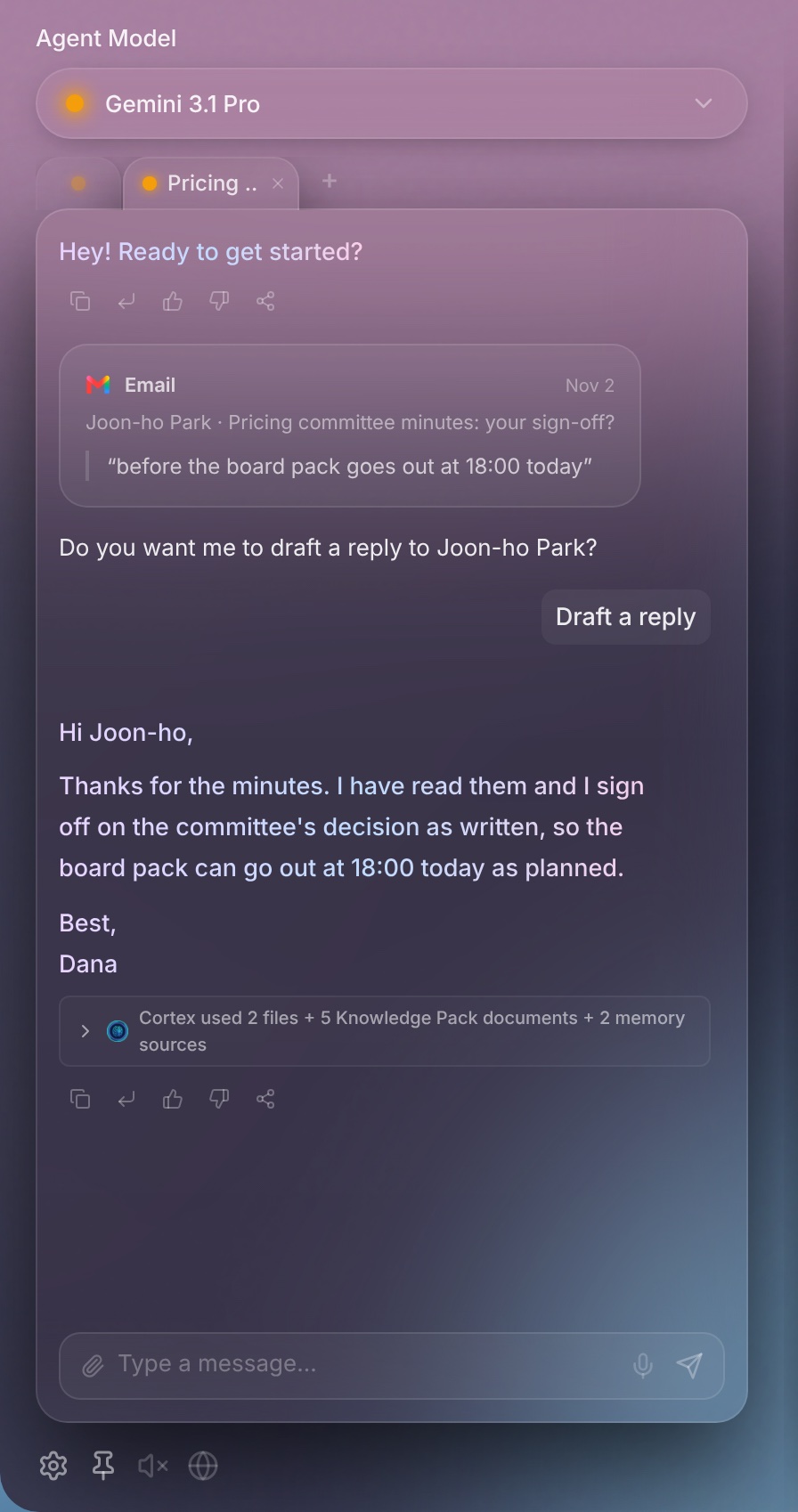
OverShoulder never sends the reply. Copy the draft and send it yourself in Gmail.
Senders the Agenda skipsComing soon
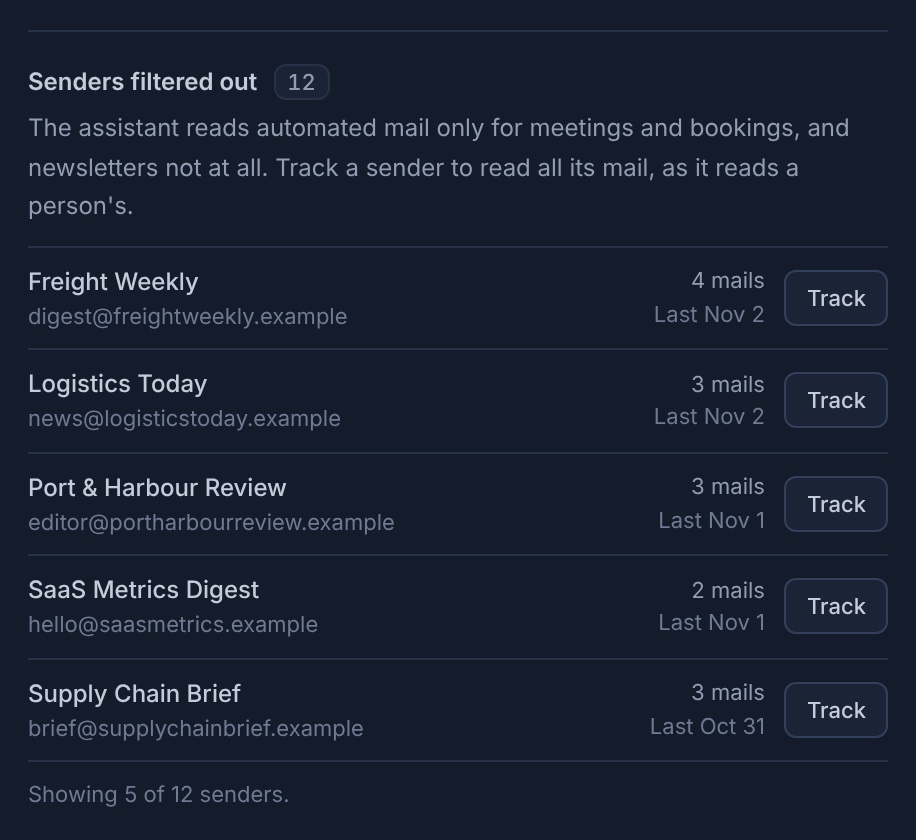
The Agenda reads automated mail only for meetings and bookings, and newsletters not at all. When it has skipped senders, the mail card's footer says how many, such as “12 senders filtered · Review”.
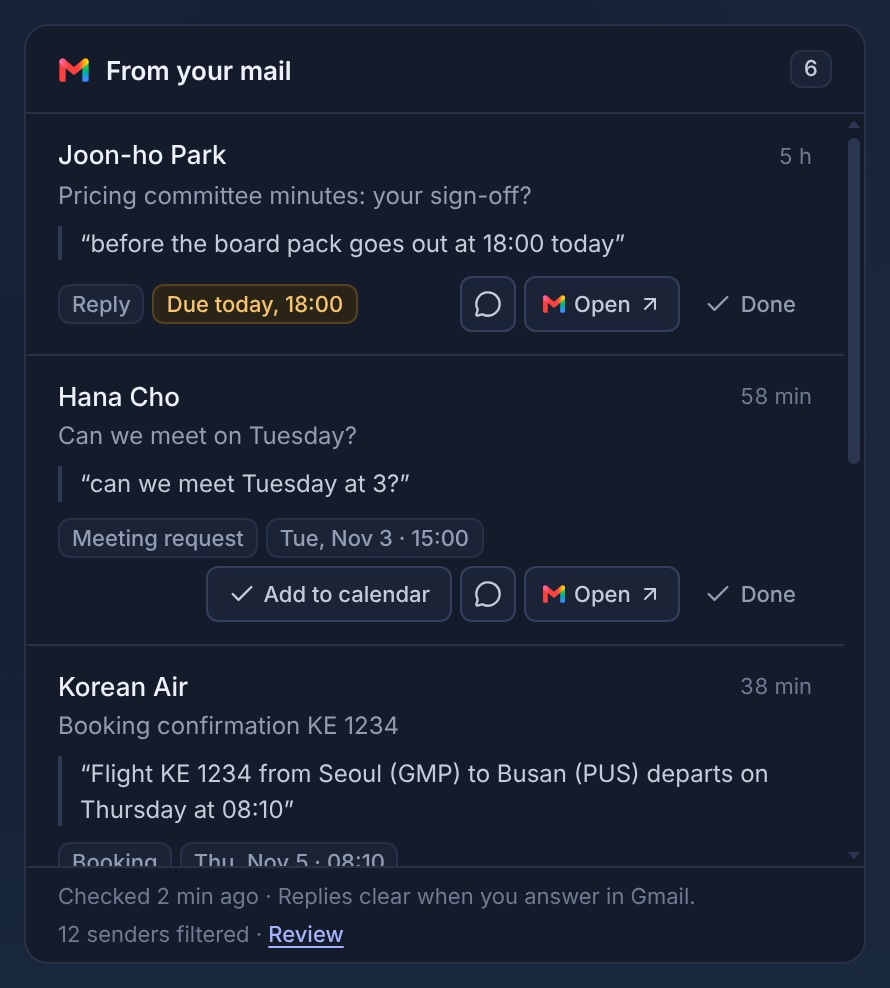
- Click Review. The Gmail panel opens on Senders filtered out, newest first, with how many mails each one sent.
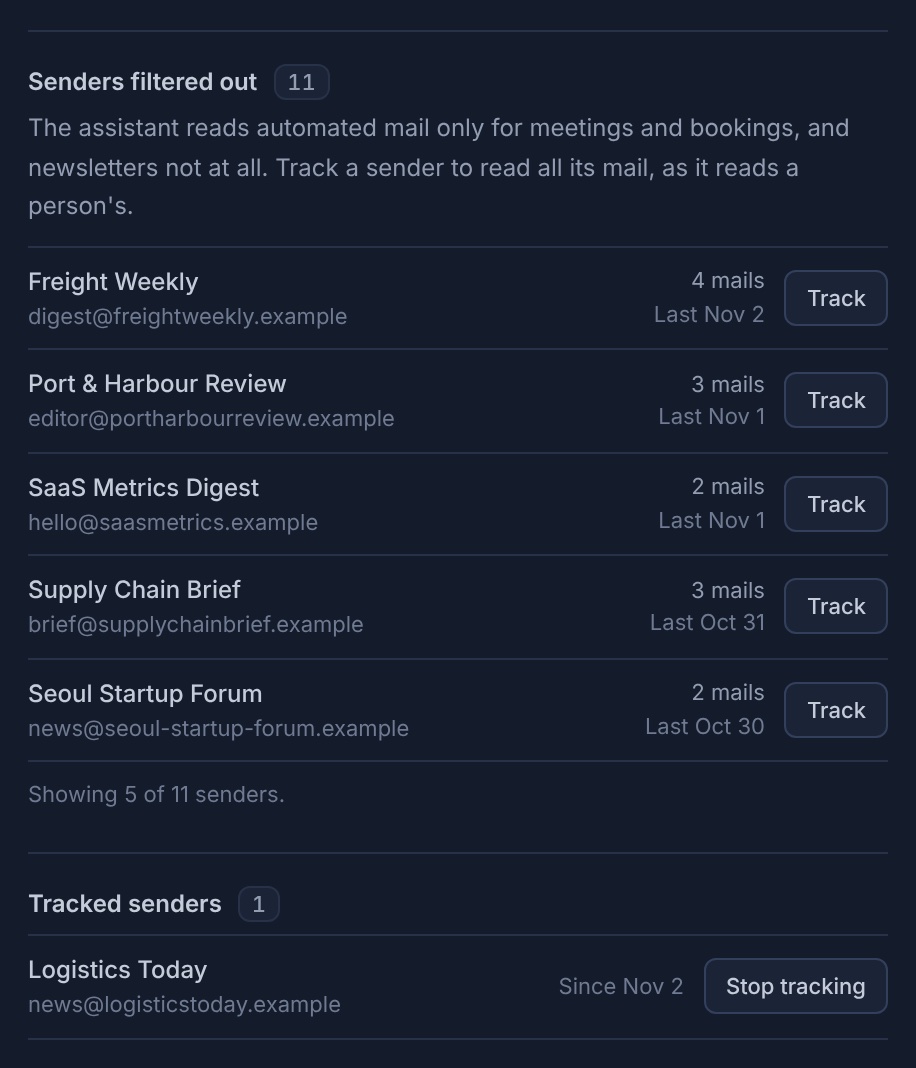
- Click Track on a sender to have its mail read the way a person's mail is. It moves to Tracked senders.
- Stop tracking undoes it.
Meetings
Prepare
Click Prepare on a meeting for a short brief: who is coming and your recent mail with them, and what your Cortex has on it. It takes about 30 seconds and tells you about how many credits it uses. You can close the panel while it works. The brief starts with What matters in this meeting, with links to sources.
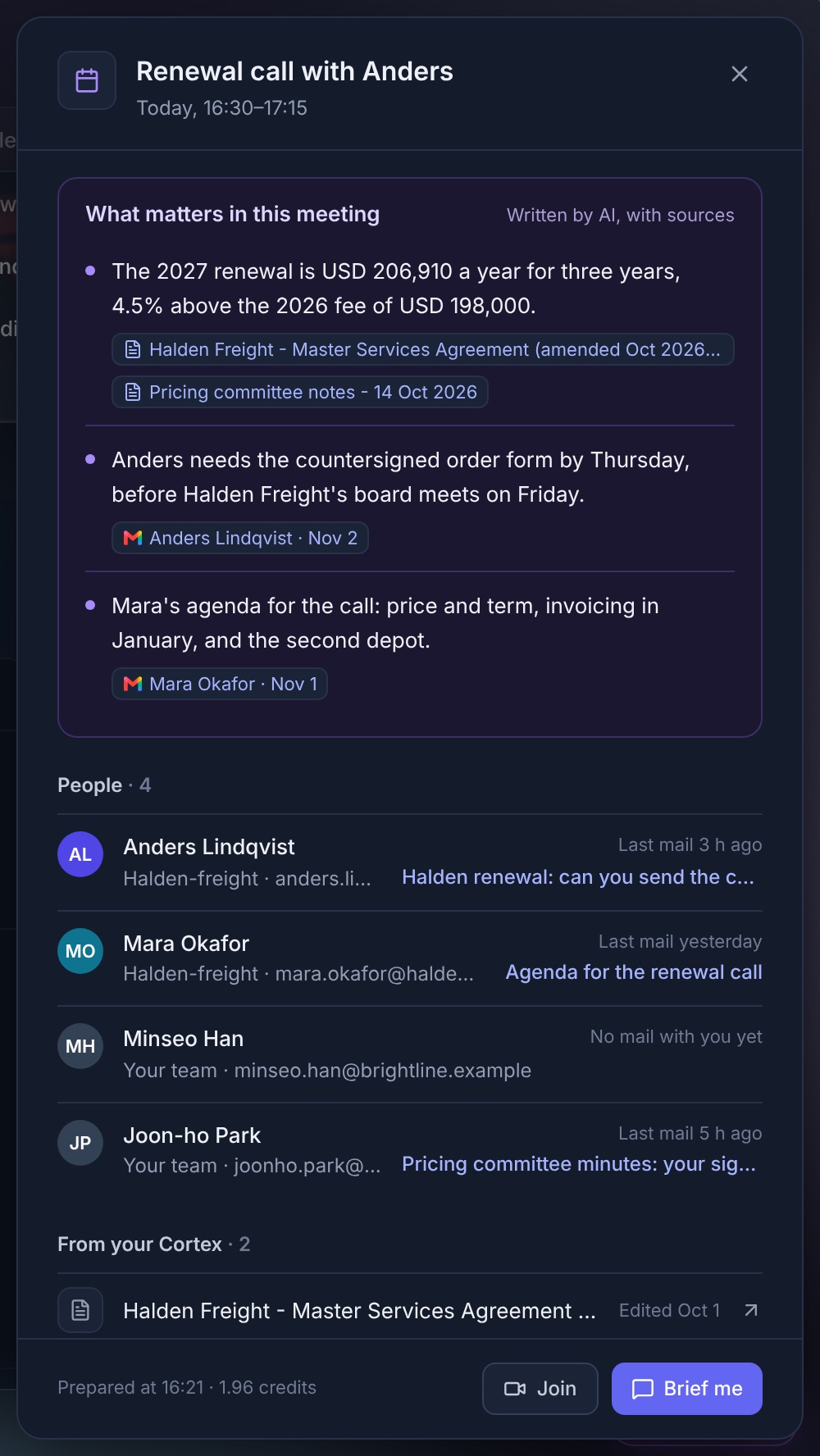
Coming soonThe brief also looks up the outside companies on the web. These company notes come from public pages, so check them before you rely on them.
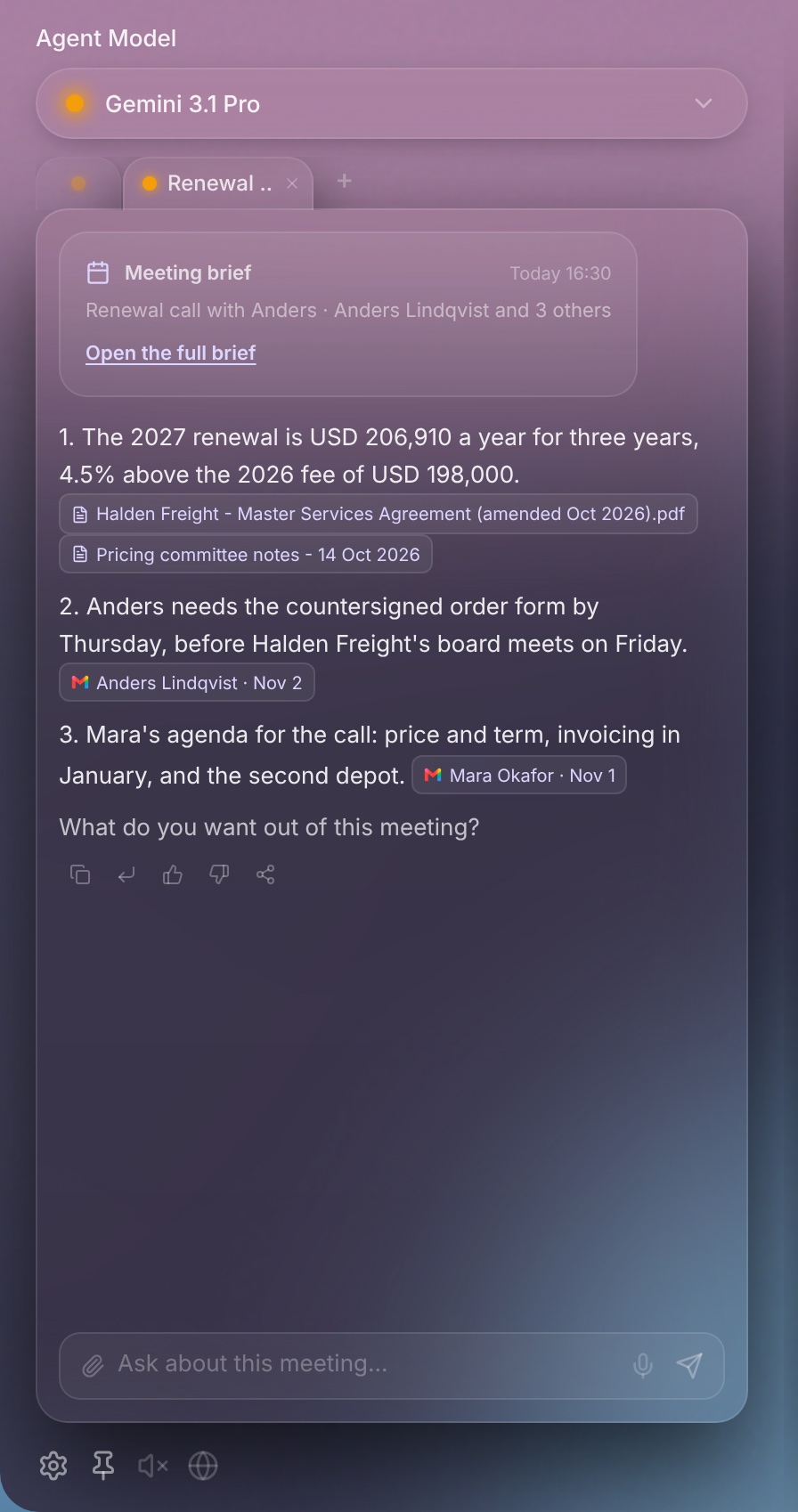
Brief me
Brief me opens a new chat tab with the brief, so you can ask follow-up questions.
Record a meetingComing soon
- Click Record a meeting next to Add event, or Record on a meeting.
- Tick Everyone in this meeting knows it's being recorded. Tell them before you start. Nothing records without this.
- Choose whether to keep the audio on your Mac after the notes are saved. If you don't, it's deleted once the notes are saved.
Recording stops by itself after 3 hours, and only one meeting records at a time. It costs about 26 credits an hour. The audio goes to ElevenLabs to be written down and is deleted there right after. The notes stay on your Mac, in Memory → Meeting Logs.
Knowledge Packs
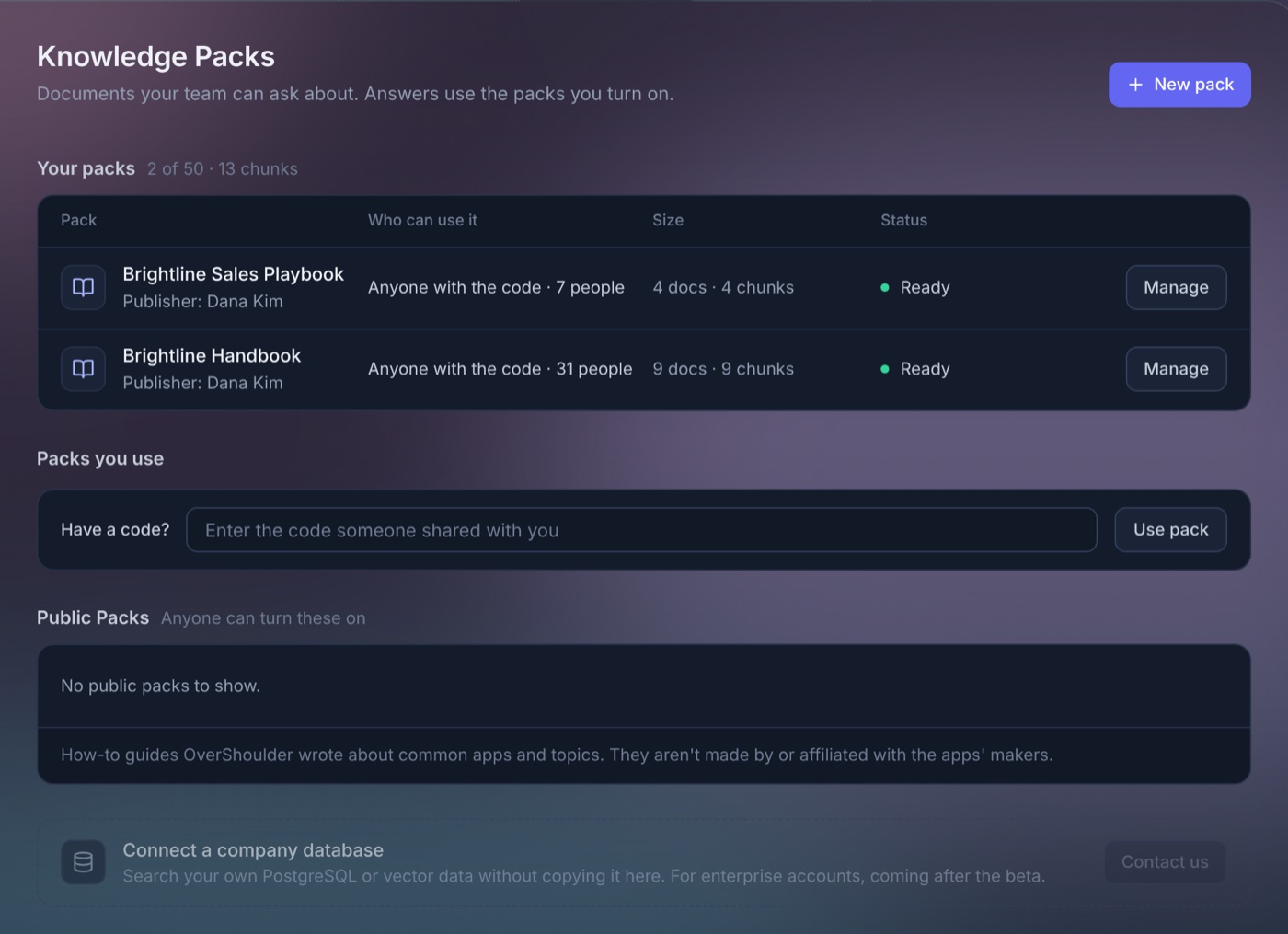
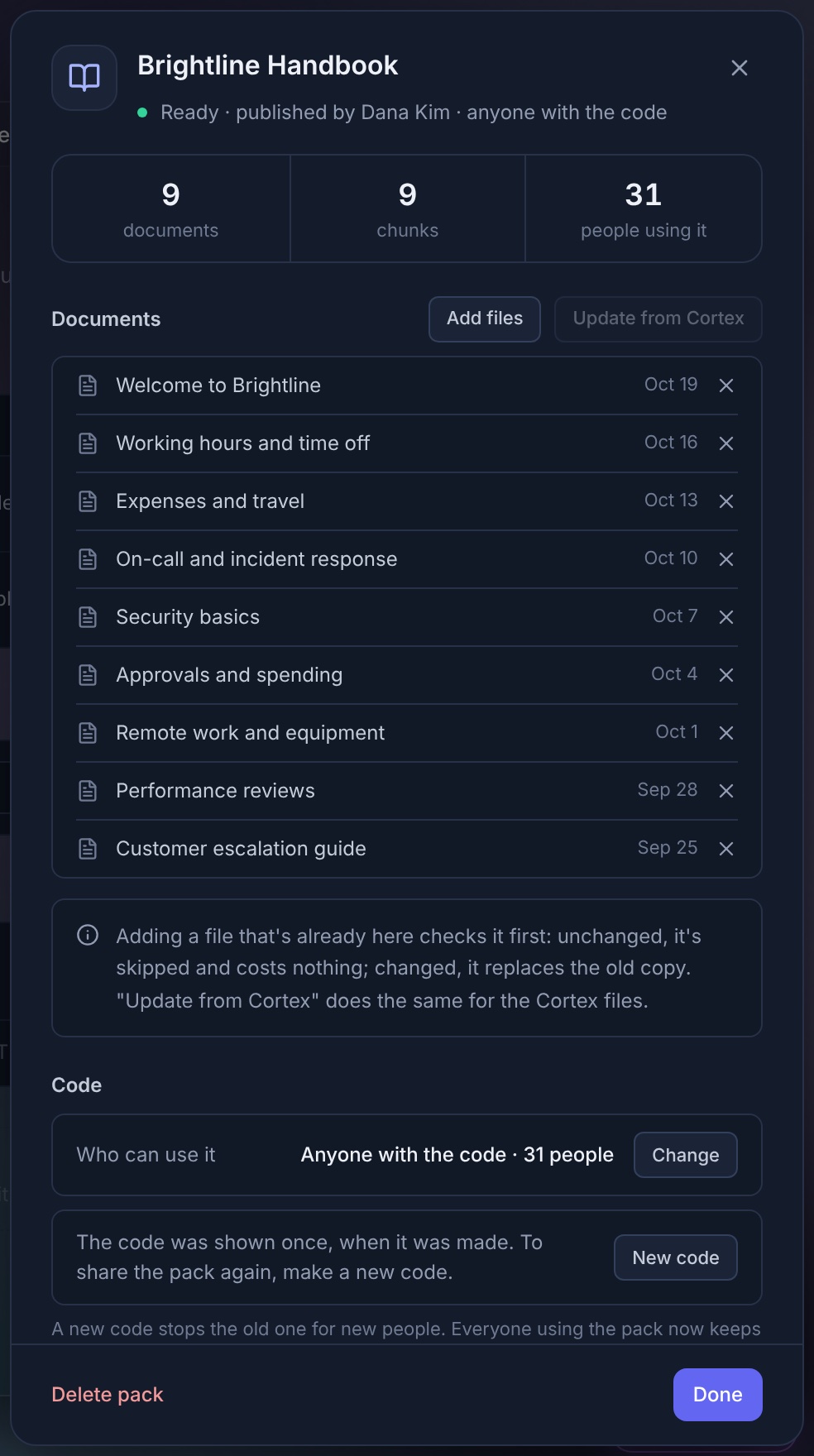
A Knowledge Pack is a set of documents your team can ask about. Answers use only the packs you turn on. Open Cortex → Knowledge.
Use a shared pack
Under Have a code?, enter the code someone shared with you and click Use pack. To stop using it, click Remove under Packs you use.
Public Packs
How-to guides OverShoulder wrote about common apps and topics. Anyone can turn them on. They aren't made by or affiliated with the apps' makers.
| Pack | Guides |
|---|---|
| Apps | |
| Adobe Photoshop | 360 |
| Canva Design Tool | 160 |
| Figma | 219 |
| Google Docs | 130 |
| Google Sheets | 200 |
| Microsoft Excel | 299 |
| Microsoft PowerPoint | 200 |
| Microsoft Word | 275 |
| Notion | 235 |
| Slack | 130 |
| Stripe Dashboard | 36 |
| Zoom | 120 |
| OverShoulder App Guide | 68 |
| Money and life | |
| Investment Analysis (CFA-Level) | 250 |
| Stock Investing Fundamentals | 200 |
| ETF & Index Fund Investing | 120 |
| Crypto & Digital Assets | 100 |
| US Personal Tax Filing | 150 |
| Korean Tax Filing (written in Korean) | 100 |
| Health Insurance Navigation | 80 |
| Home Buying Process | 100 |
| Car Buying & Ownership | 65 |
| Student Loan Management | 60 |
| Legal Self-Help Basics | 120 |
Make a pack
Click New pack:
- About the pack — A name, a publisher, a description and who can use it: Only you or Anyone with the code. You can add a logo (PNG or JPG, square, up to 1 MB).
- Add content — Drop files or folders (PDF, Word, Excel, PowerPoint, Numbers, HWP and text, up to 50 MB a file), or pick files Cortex has already read.
- Before building — OverShoulder shows the cost first. Only embedding costs credits, and files from Cortex cost no new credits.
There is no format to follow and nothing to embed yourself: OverShoulder reads the files, builds the pack and shows its progress until it is ready.
Pack documents that help an answer appear in its "Cortex used" list. Packs are kept on OverShoulder Central so your team can use them. To delete a pack, click Manage, then Delete pack.
Chat & Tabs
Sending a message
- Click the input bar at the bottom of the panel, or just start typing.
- Press Enter to send. Press Shift+Enter for a new line.
- The AI processes your message and streams the response in real-time.
Click ■ to stop an answer. If a model hasn't started answering after 45 seconds, OverShoulder asks the next model and tells you. If no answer comes within 90 seconds, it stops and offers Try again.
Attaching files
Click the paperclip or drop a file on the chat. You can attach PDF, Word, Excel and Numbers files up to 20 MB, text and code files up to 5 MB, and images. Large images are made smaller first.
Using multiple tabs
Each tab runs independently with its own conversation and AI model. This lets you work on different topics simultaneously.
- Click the + button in the tab bar to create a new tab.
- Switch between tabs by clicking their names. Each tab remembers its own conversation history.
- Double-click a tab's name to rename it. Click the × on the active tab to close it.
- Each tab can use a different AI model — change the model in one tab without affecting others.
Clearing a conversation
To start fresh, open a new tab with +. Settings → General → Clear Chat History deletes all tabs and their messages. This can't be undone.
AI Models
Claude, GPT and Gemini models run on your credits. Grok, DeepSeek, Qwen and Mistral appear after you add your own API key.
How to switch models
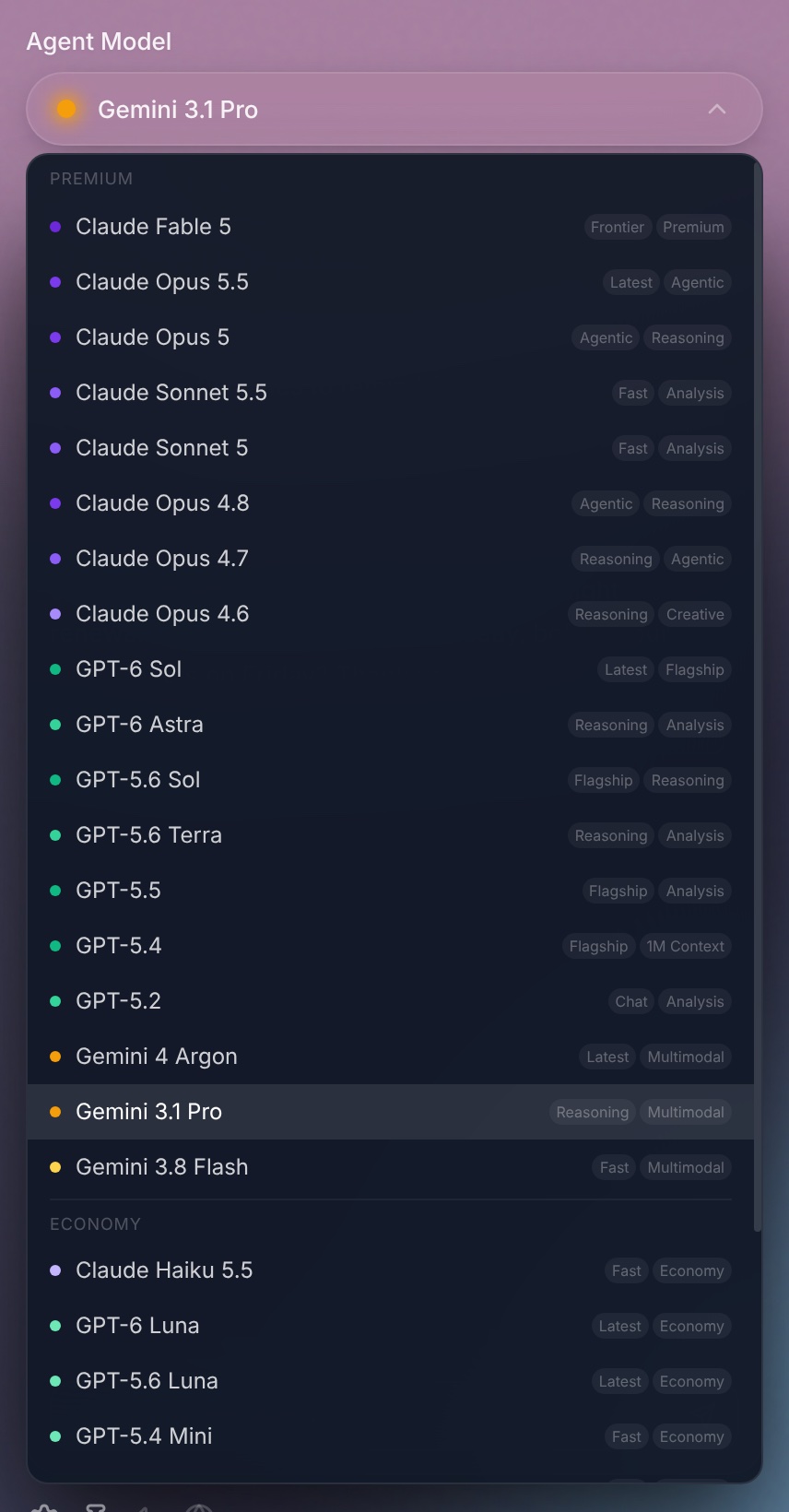
- Click the model name under Agent Model at the top of the chat.
- Pick a model under Premium, Economy or Flexible. Models that use your own keys are listed under BYOK.
- Click Confirm. The conversation stays, and the new model answers from your next message. If you're sharing your screen, sharing stops.
- The choice applies to the current tab; other tabs keep their models. OverShoulder remembers your choice.
Available models
Anthropic — Claude Fable 5, Opus 5.5, Opus 5, Sonnet 5.5, Sonnet 5, Opus 4.8, Opus 4.7, Opus 4.6 and Haiku 5.5.
OpenAI — GPT-6 Sol, GPT-6 Astra, GPT-6 Luna, GPT-5.6 Sol, GPT-5.6 Terra, GPT-5.6 Luna, GPT-5.5, GPT-5.4, GPT-5.4 Mini, GPT-5.2 and GPT-5.2 Chat.
Google — Gemini 4 Argon, Gemini 3.1 Pro, Gemini 3.8 Flash and Gemini 3 Flash.
Flexible Claude, Flexible GPT and Flexible Gemini. Each picks a bigger or smaller model of its family for each question.
Grok 4.1 and Grok 4.1 Fast (xAI), DeepSeek V3.2 and DeepSeek R1, Qwen3 Max and Qwen3.5 Flash, Mistral Large and Mistral Small.
You pay for the tokens each answer uses, at the model's price, so longer chats and attachments cost more. Settings → Usage → Credit Cost per Model shows an estimate for each model, for a typical message (about 2,000 tokens in and 500 out).
Choosing a model
- Economy models (Claude Haiku 5.5, GPT-6 Luna, Gemini 3 Flash and others) are the fastest and cheapest.
- Premium models cost more and suit harder work.
- Flexible models pick the size for you.
- Not sure? Ask in two tabs, or start a Council.
Council
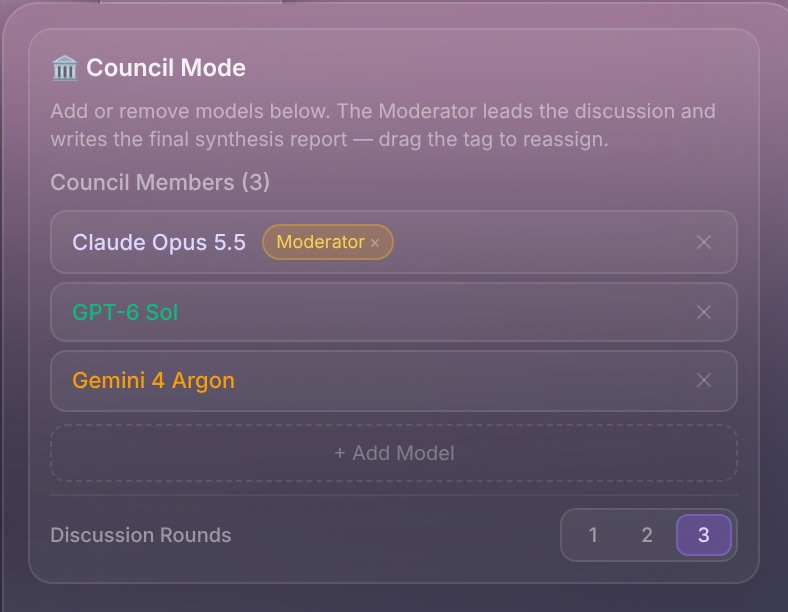
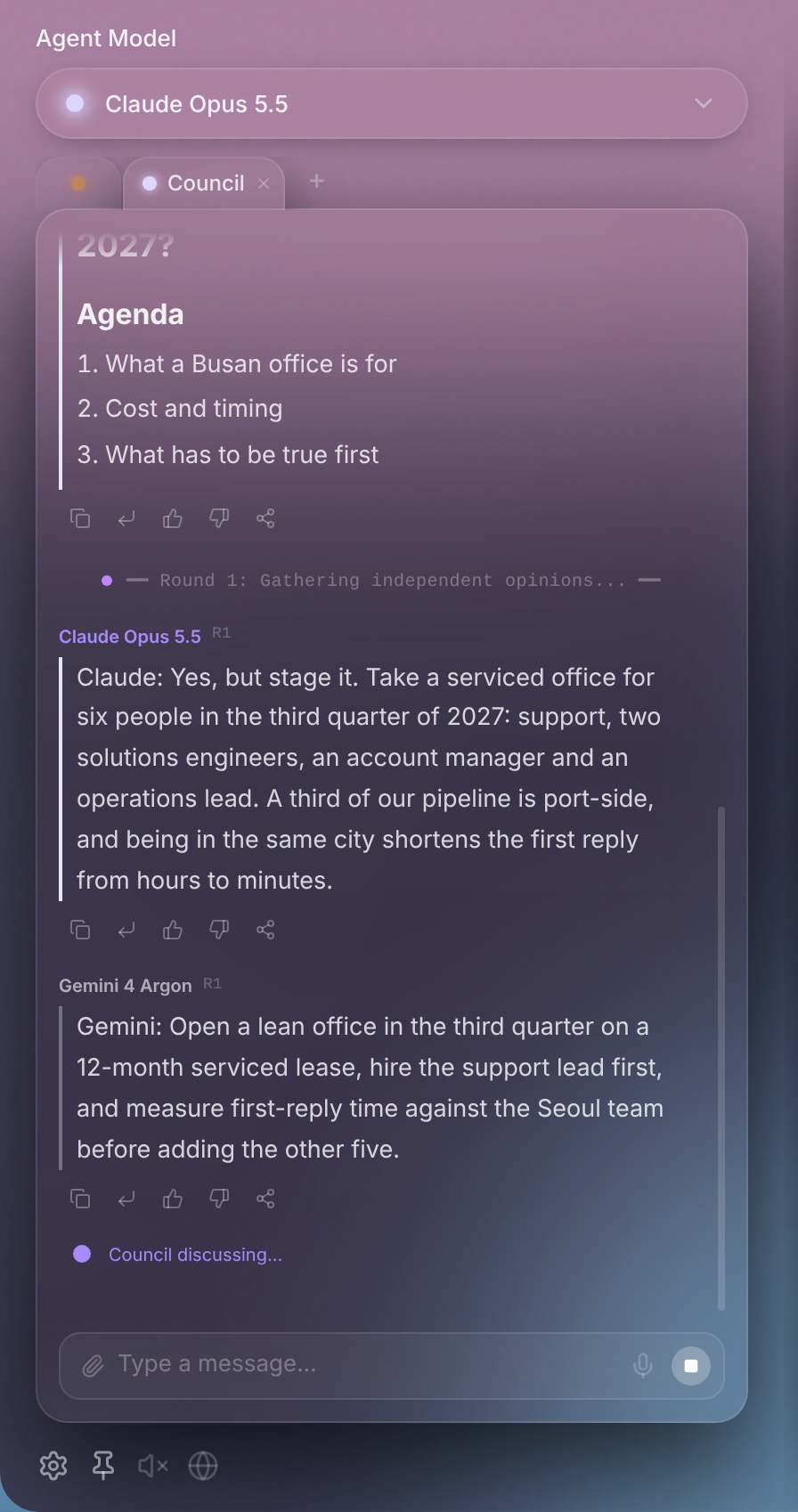
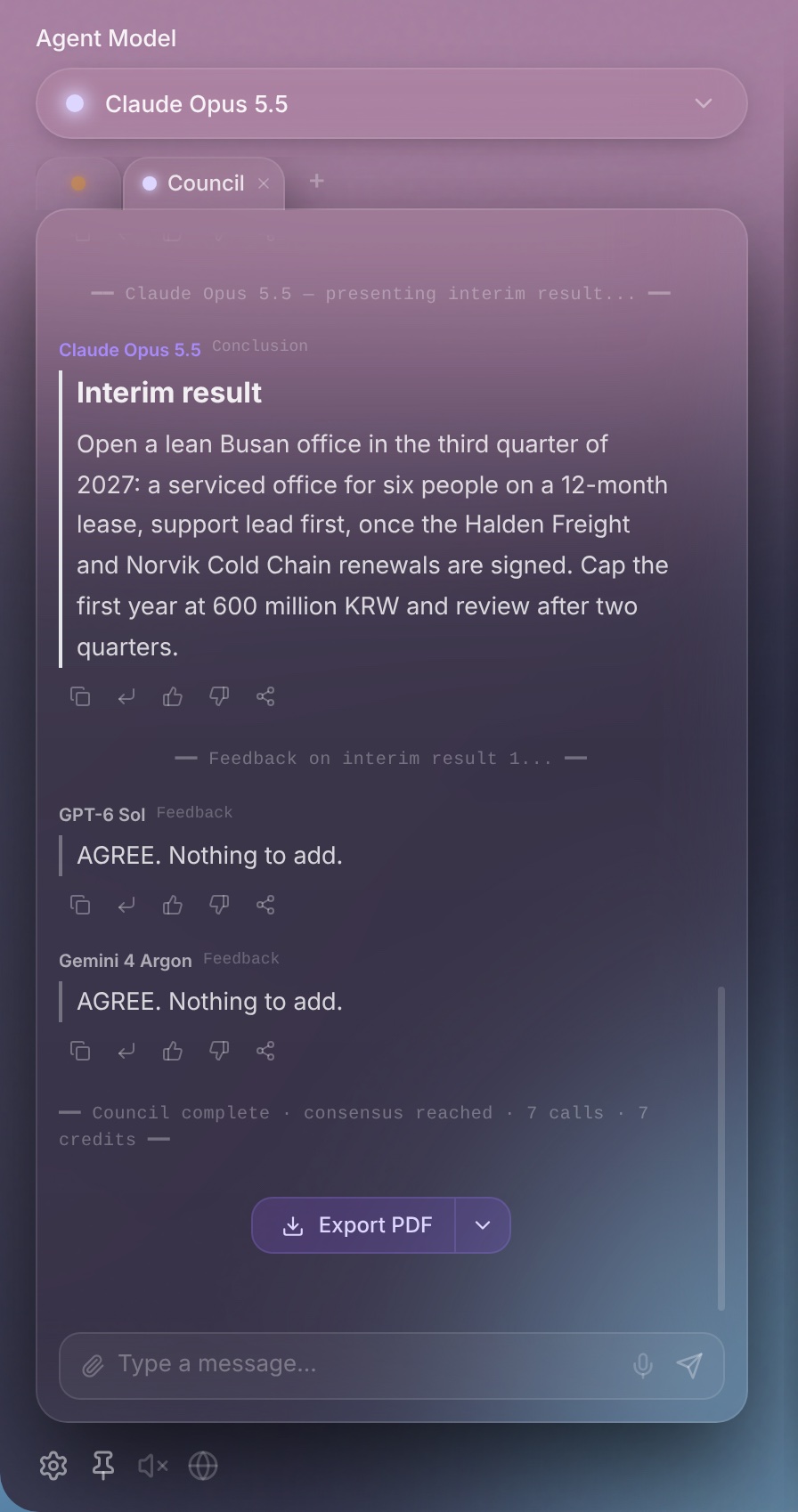
Council asks several models the same question and brings their answers together.
How to start a Council
- Type
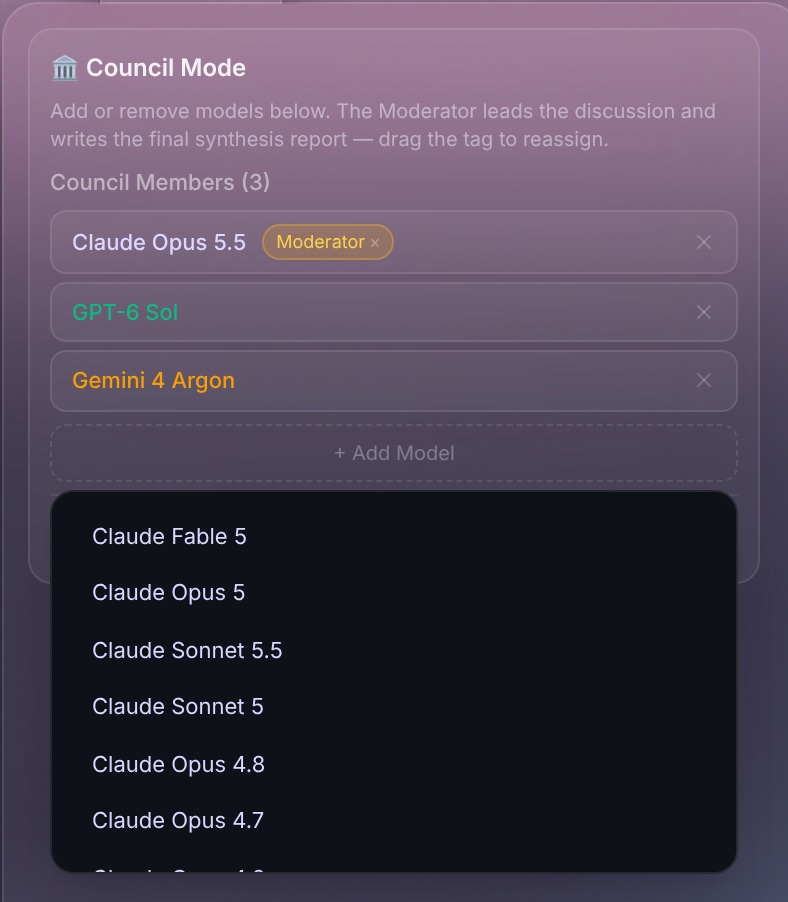
/councilin the chat box, or choose Ask Council from an answer's share menu. - Check the members. By default there is one Claude, one GPT and one Gemini model, and the Claude model is the Moderator. Add or remove models, or drag the Moderator tag to another model.
- Choose Discussion Rounds: 1, 2 or 3 (the default).
- Type your topic and press Enter.
How it runs
The Moderator first writes a title and an agenda. Click Confirm & Start Discussion. Each round, the Moderator gives an interim result and the members respond. Click Continue Discussion or Get Final Conclusion, or type your own feedback. When it's done, click Export PDF, or choose Word or Markdown. Finished Councils are saved in Memory → Council Logs.
Screen Sharing
Screen sharing lets the AI see your screen and provide context-aware guidance. It's completely optional — OverShoulder works without it too.
How to start screen sharing
- Click ▶ in the top bar.
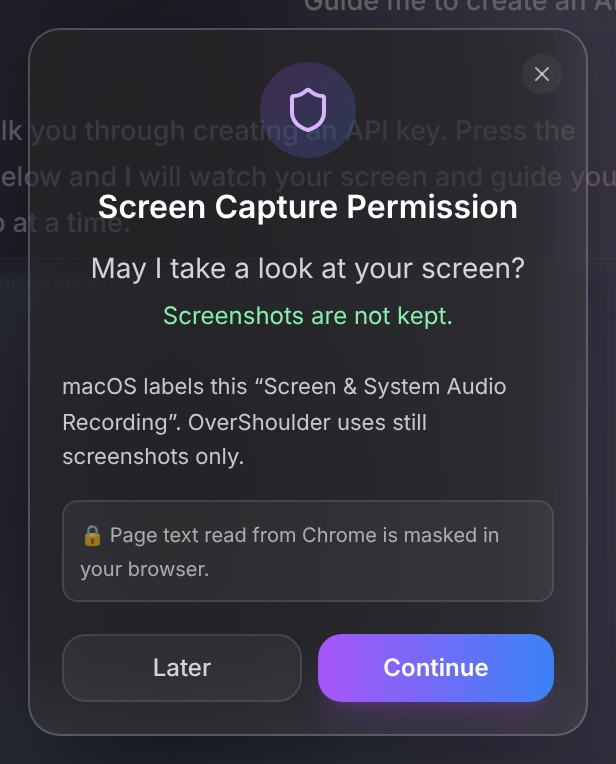
- OverShoulder asks "May I take a look at your screen?" Click Continue. It remembers your answer for 29 days.
- The first time, macOS asks for Screen & System Audio Recording. Click Open System Settings, turn on OverShoulder, then click Restart OverShoulder.
- While you share, the button turns purple and shows ■.
How it works
- While sharing is on, OverShoulder checks your screen every 2 seconds, on your Mac, to notice changes. These checks send nothing.
- A screenshot goes to the AI only when you send a message, when OverShoulder checks whether a tip would help, or for the next Active Guide step. With it go the name of the app in front, its window title, and the title and address of the open tab in each browser that's running.
- Screenshots are not masked. Close anything private before you share, or stop sharing.
- The screenshot goes through OverShoulder Central to the provider of the model you chose. Central keeps no screenshot after the request, and OverShoulder doesn't save screenshots on your Mac.
- Sharing stops by itself after 3 minutes with no new message, unless Active Guide is running. Changing the model or hiding the panel also stops it.
Tips while you share
While you share, OverShoulder may offer a short tip when the page changes or when you pause for about 30 seconds, at most three in a row. Settings → AI Behavior → Intervention Level sets how often it speaks up. At 20% or lower, it answers only when you ask.
To stop screen sharing
Click ■ in the top bar. Screen sharing stops immediately. OverShoulder keeps no screenshots.
Browser Reader
Browser Reader is an optional Chrome extension that lets AI read and understand the web page you're viewing — not just a screenshot, but the actual page structure and text content. This means faster, more precise guidance for web-based tasks.
How it works
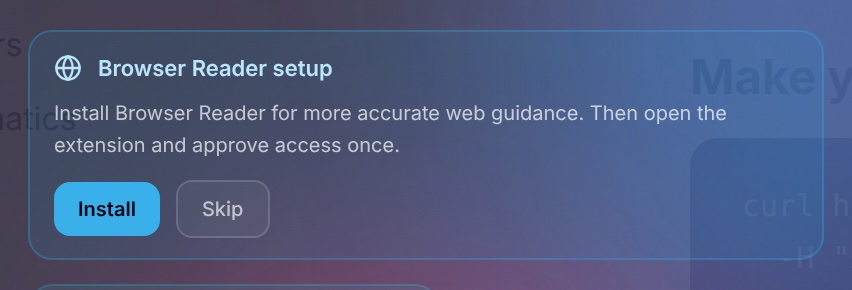
- Install the OverShoulder Browser Reader extension from the Chrome Web Store. OverShoulder shows an Install button the first time it's needed. Then click the OverShoulder icon in the Chrome profile you use and choose I Agree & Allow.
- After you agree, the extension reads the active tab: the page address, its title, up to 2,000 characters of its text, its buttons, links and fields, and the values of fields that aren't sensitive.
- Browser Reader reads pages only while screen sharing is on. The current address and page title are classified as Web history by the Chrome Web Store, although Browser Reader does not collect a separate list of past visits.
- AI now has both visual context (screen capture) and structural context (page content) for more accurate guidance.
On/Off toggle
Click the globe icon at the bottom of the panel to turn Browser Reader on or off. The globe works only while you share your screen.
- Green = ON — AI reads your browser content
- Gray = OFF — No browser page context is collected or sent
When you turn Browser Reader OFF, the page it holds is cleared at once. Page context already used in a conversation stays in your chat history until you delete it.
Privacy & Security
Browser Reader is designed with privacy as the top priority:
- Masking, always on: Before page text leaves the browser, the extension replaces email addresses with
[email], IPv4 addresses with[ip], JWT tokens with[token], API keys and secrets with[api-key], card numbers with[card], US Social Security numbers with[ssn], resident registration numbers with[id-number]and phone numbers with[phone]. This covers the page text, the title, labels, placeholders and field values. Pattern matching reduces risk but can miss some values. - Sensitive fields never sent: The values of password, email, phone, search and card fields are never sent. Neither are fields whose name or autofill setting points to a login, username, password, secret, token, card, CVV or SSN, or hidden fields.
- Secrets in addresses: In the page address, the values of parameters named
token,key,secret,session,code,access_token,refresh_token,api_key,passwordorcheckoutidbecome[redacted]. - Screenshots are not masked: Masking applies to what Browser Reader reads, not to the screenshot that screen sharing sends.
- Active snapshot clearing: The current page context is kept in Browser Reader's active memory and cleared when you turn Browser Reader off. Context already included in local conversations, generated responses, or Memory Box entries follows the desktop app's normal retention and user-deletion controls. Limited operational logs may retain technical metadata such as request time, status, element count, and page URL or title.
- Local handoff and AI processing: The extension sends masked page context only to the OverShoulder app on your Mac (
localhost). When you ask something, relevant context goes to the AI model you chose, through OverShoulder Central, or straight to the provider when you use your own API key. - No sale: Browser Reader data is not sold or rented and is not shared for advertising, creditworthiness, lending, or purposes unrelated to the requested AI functionality.
- Full user control: You can stop Browser Reader at any time by turning off the globe or stopping screen sharing.
Active Guide
Active Guide walks you through a task one step at a time. After each step, it waits for you to pause, looks at your screen and writes the next step in the chat.
How to start Active Guide
- Ask how to do something, such as "How do I create a pivot table?"
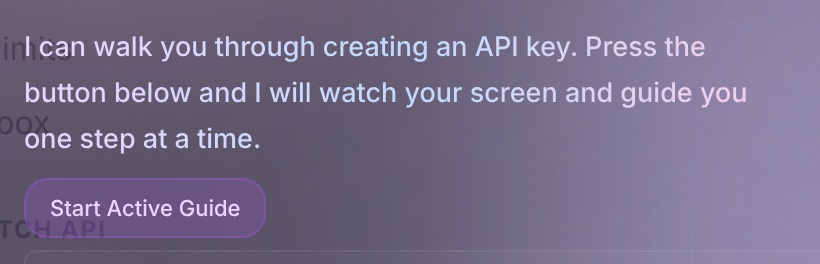
- If a step-by-step walk would help, the answer ends with a Start Active Guide button. Click it. If screen sharing is off, OverShoulder asks to look at your screen first.
- If you're already sharing, you can also type "start active guide".
How it works
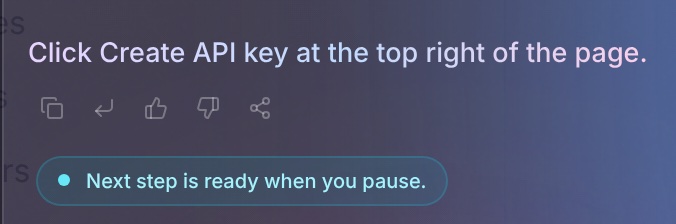
- A chip above the input says "Next step is ready when you pause", with a short countdown.
- When you pause, OverShoulder looks at your screen and writes the next step in the chat. It doesn't draw on your screen or click for you.
How Active Guide ends
- Ask it to stop, in your own words.
- Stopping screen sharing pauses it. Share again in the same tab to pick up where you left off.
Voice Input & Spoken RepliesComing soon

Voice input
- Click the microphone in the input bar, or press Cmd+Shift+;.
- Speak, then click Done. Press Esc to cancel. A recording can be up to 1 minute long.
- Your words appear in the input bar, where you can edit them before you press Enter.
Spoken replies
- Click the speaker icon at the bottom of the panel to turn spoken replies on or off.
- Press Esc to stop a reply while it plays.
- Choose a voice in Settings → General → AI Voice: Luna, Mia, Aria, Sora, Junho, Leo or Noah.
Memory Box
Memory Box is OverShoulder's long-term memory. After a chat, OverShoulder saves what matters, so later answers can use it.
How to open Memory Box
Click Cortex in the top bar, then the Memory tab. Memory Box has seven tabs:
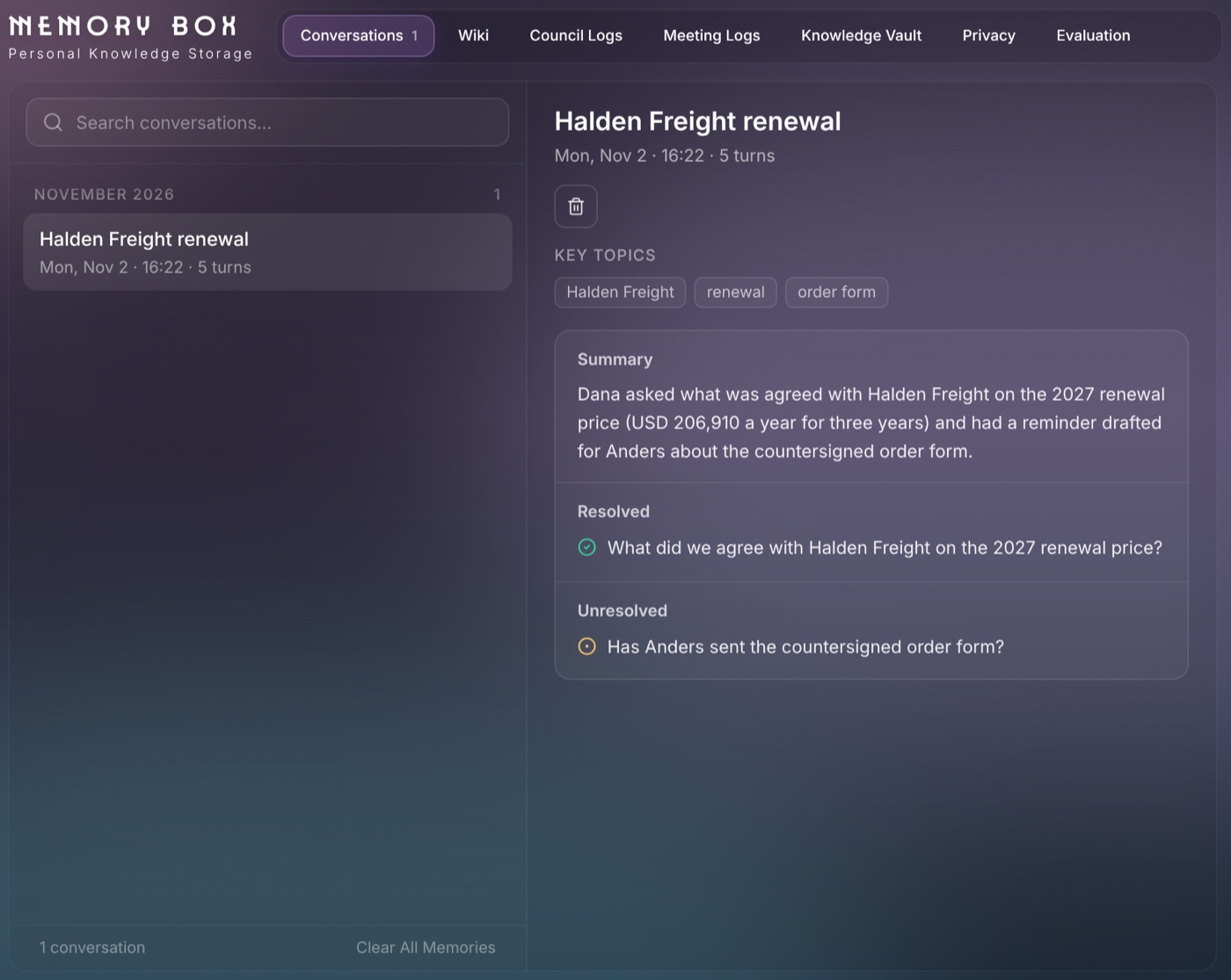
- Conversations — Summaries of past chats. Search them, delete one, or click Clear All Memories.
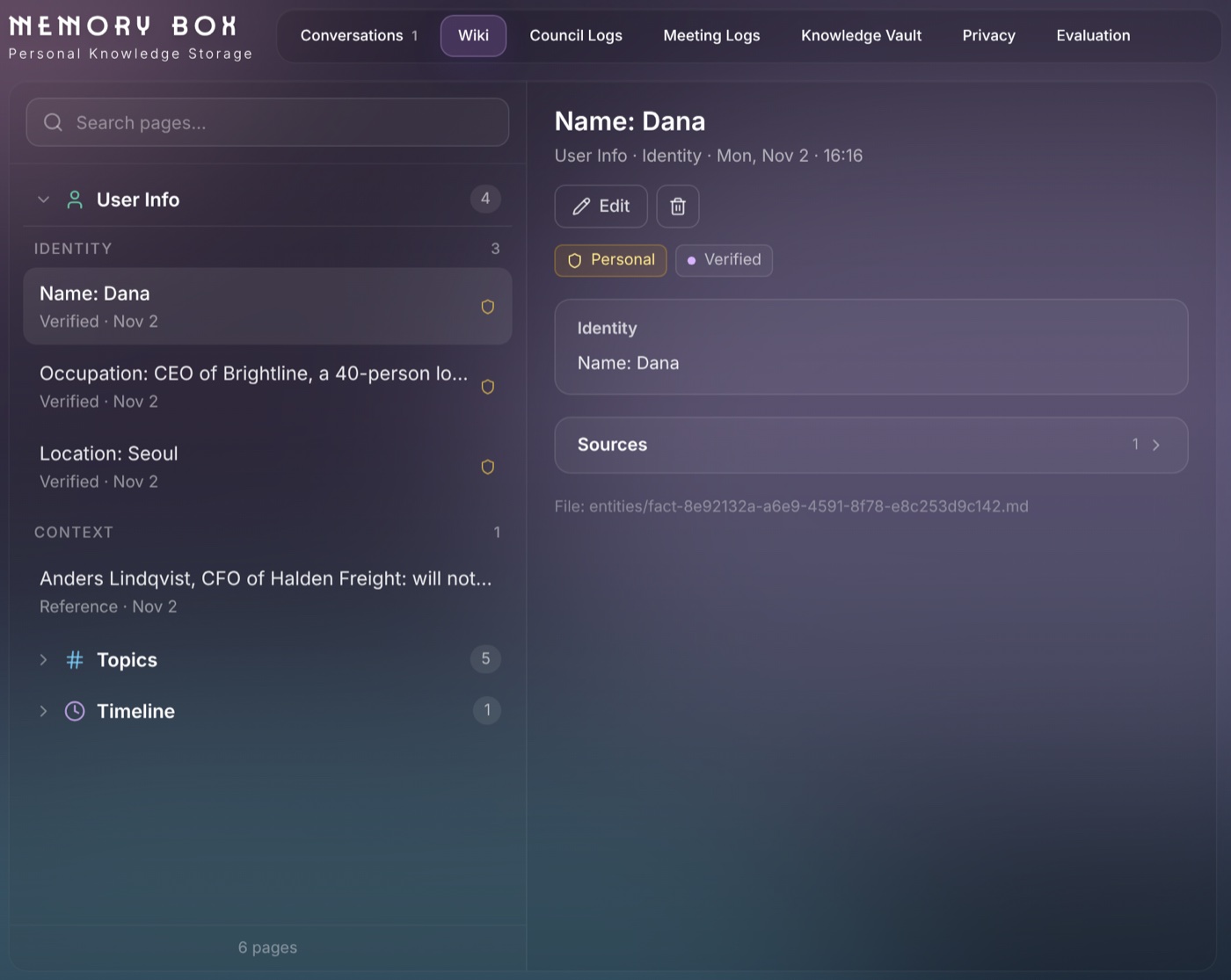
- Wiki — What OverShoulder has learned, as pages in folders. Facts about you are in User Info, where you can edit or delete them.
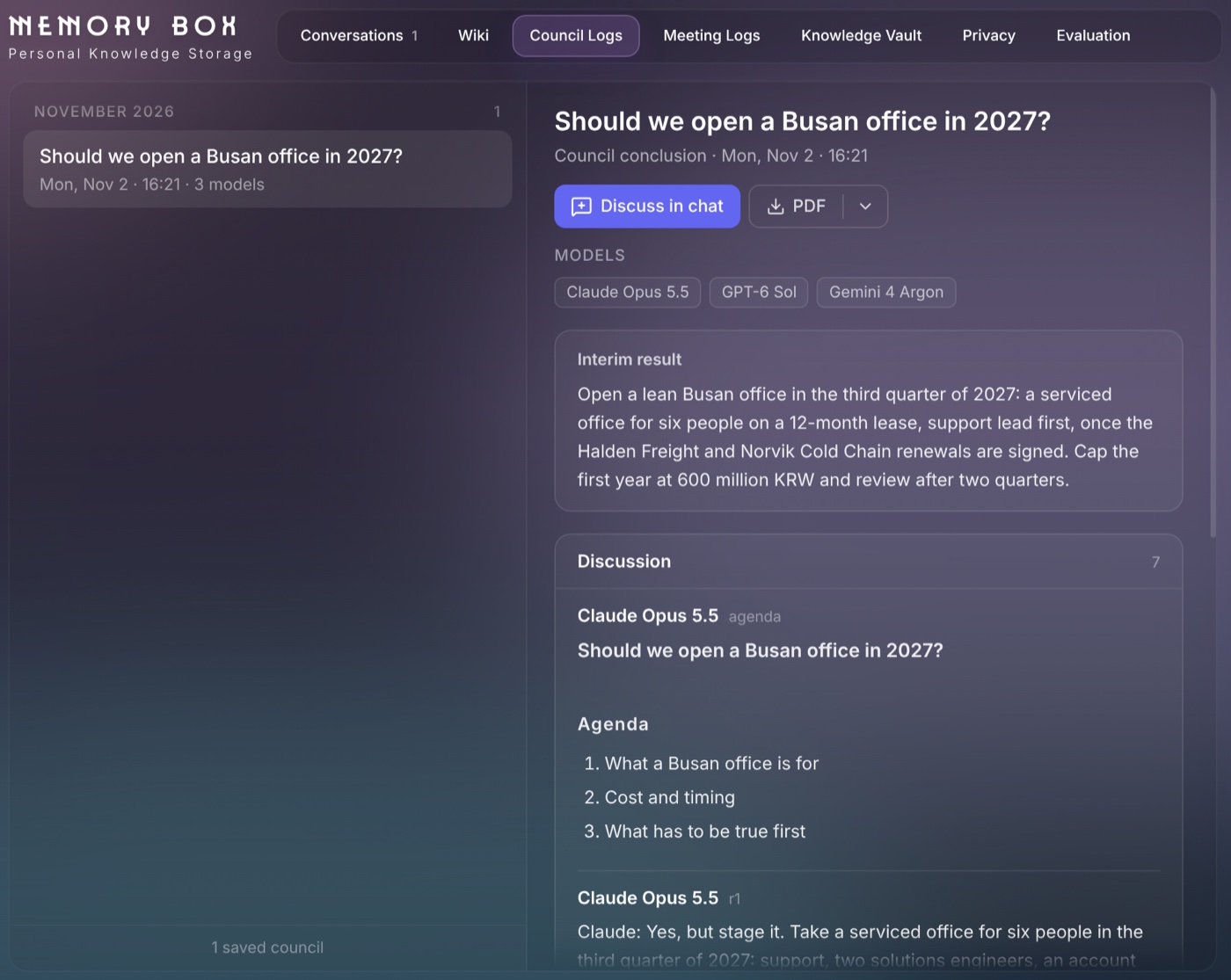
- Council Logs — Finished Councils. Download one as PDF, Word or Markdown, or click Discuss in chat.
- Coming soonMeeting Logs — Notes from recorded meetings, with an AI summary that links each point to where it was said.
- Knowledge Vault — How much each source added, and the files Cortex uses most.
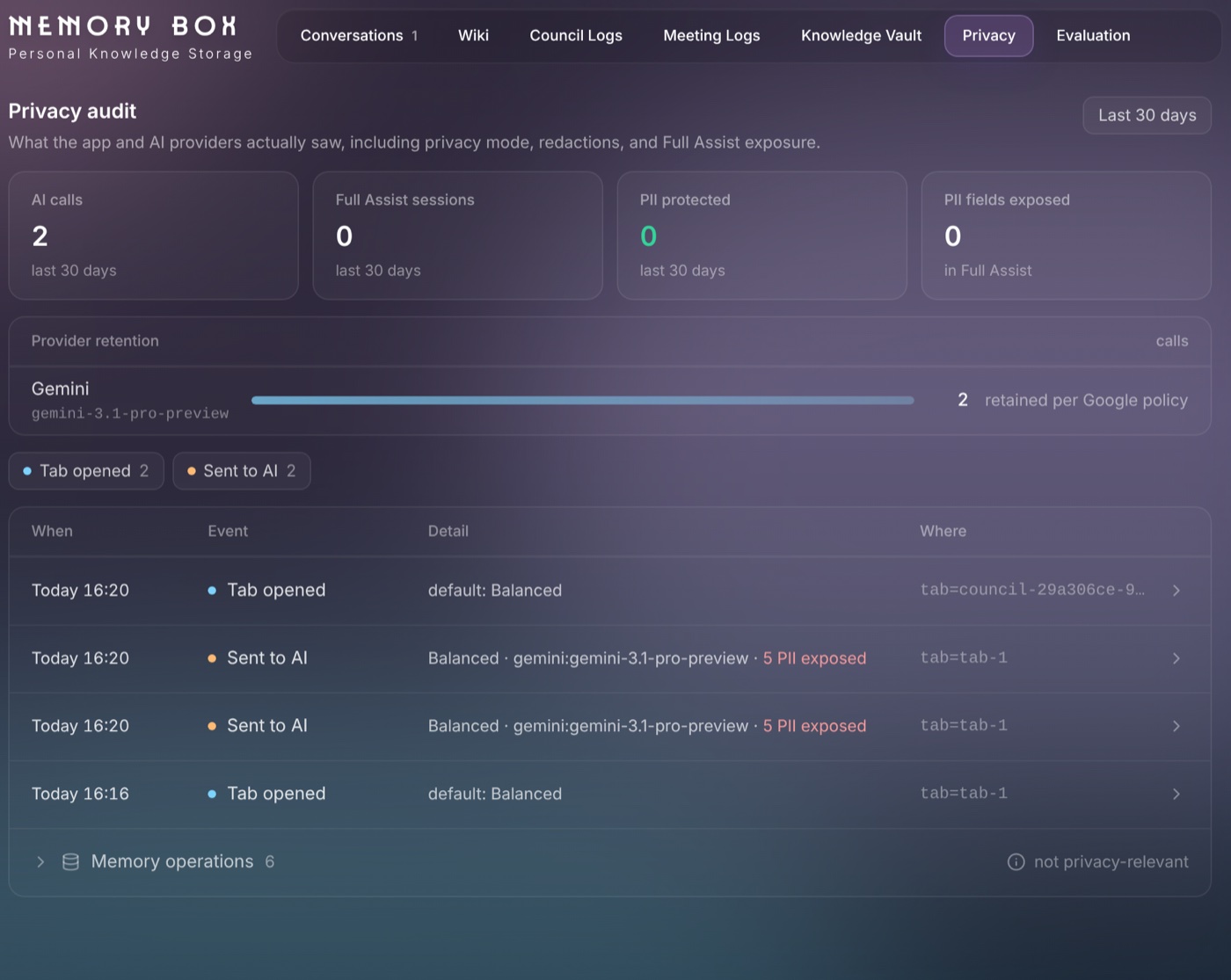
- Privacy — The privacy log: AI calls, Full Assist sessions, PII protected and PII exposed, and each event.
- Evaluation — Quality scores for Cortex sessions.
Message Actions
Each answer has these buttons. Your own messages show Copy, Reply and Share when you hover.
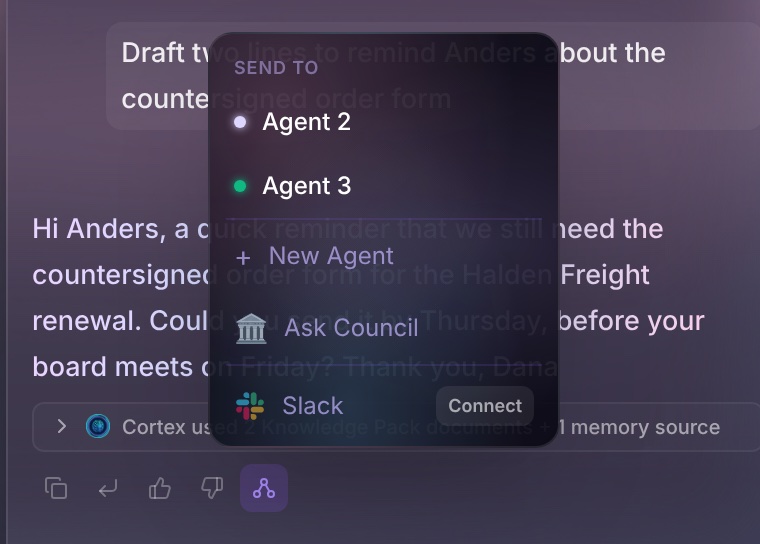
- Copy — Copies the text.
- Reply — Quotes the message in your next message.
- Good / Bad response — Rates the answer. Bad response asks what went wrong. OverShoulder receives the rating, the reason and the model, never the conversation or your screen.
- Share — Sends the message to another tab (add a note if you like), to a New Agent tab, to Ask Council, or to Slack when it's connected.
Skills
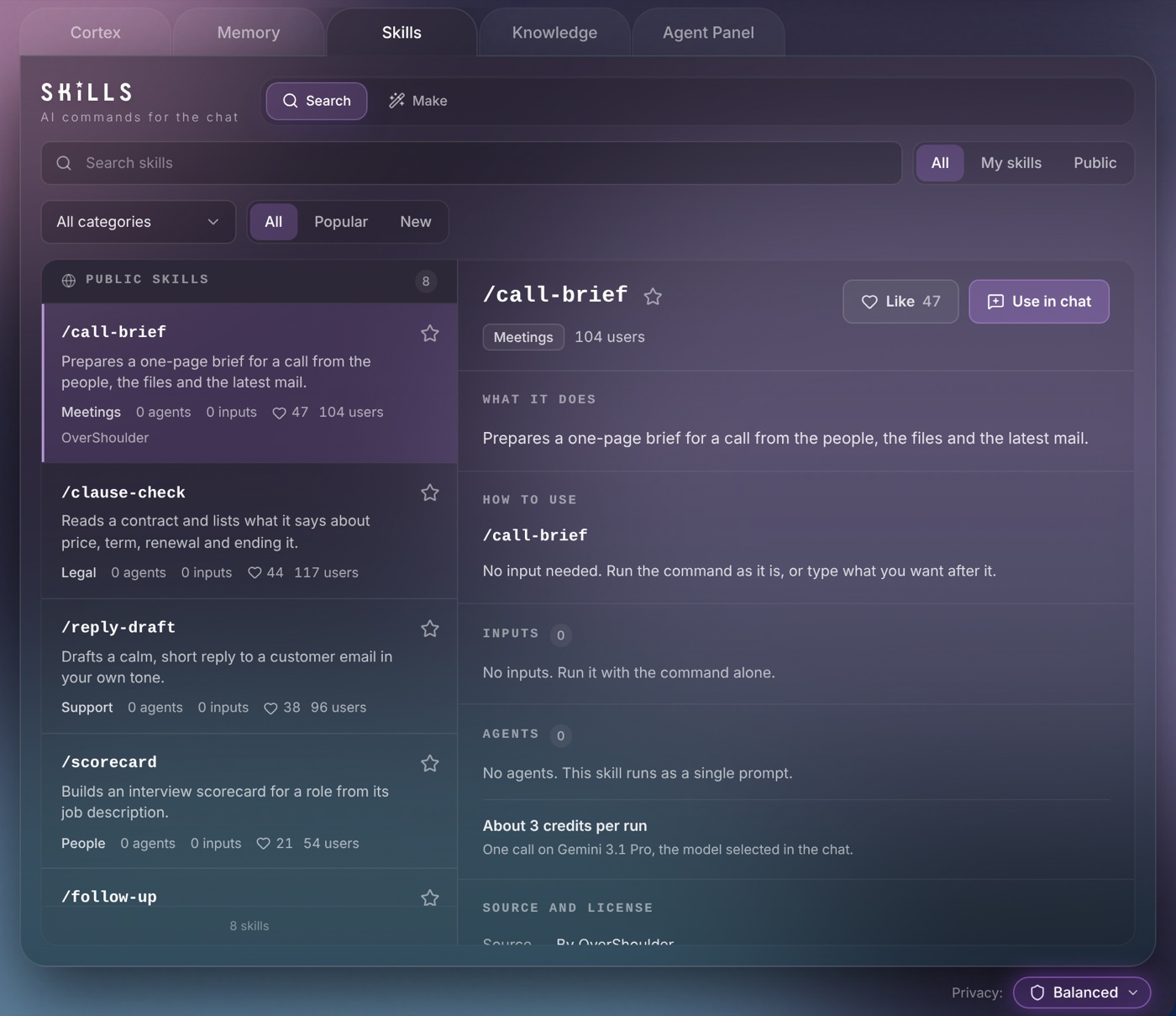
Skills are AI commands for the chat. In Cortex → Skills, use Search to find skills or Make to build your own. Star a skill to list it when you type / in the chat.
Settings: Account
Open Settings by clicking the gear icon at the bottom-left of the panel.
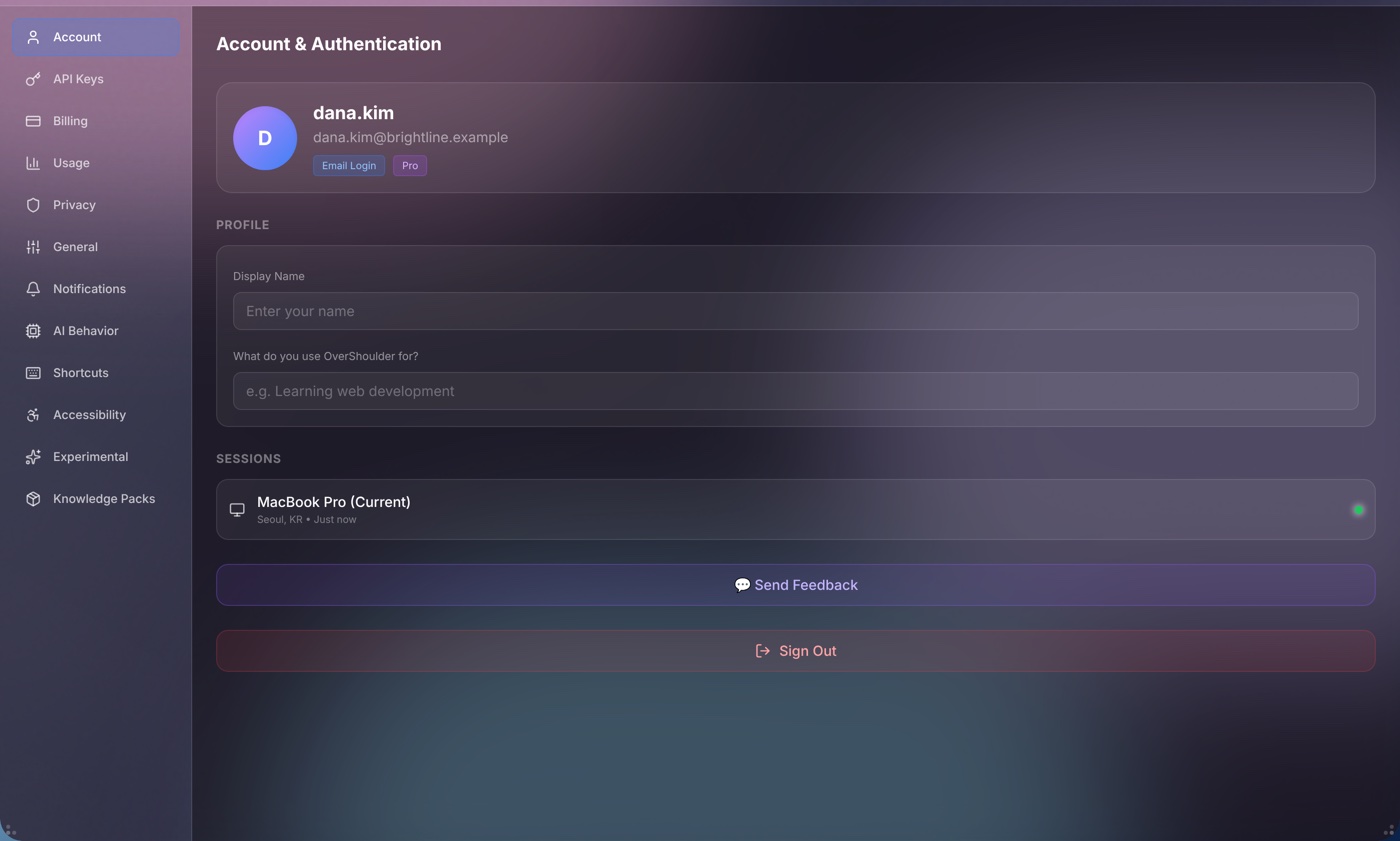
- Email and plan — Your sign-in email and your plan.
- Display Name — Set how you'd like the AI to address you.
- What do you use OverShoulder for? — Tell OverShoulder what you mainly use it for. This helps personalize answers.
- Trial — Your trial days left and your credits.
- Send Feedback — Write to the OverShoulder team.
- Sign Out — Signs you out and returns to the login screen.
Settings: API Keys (BYOK)
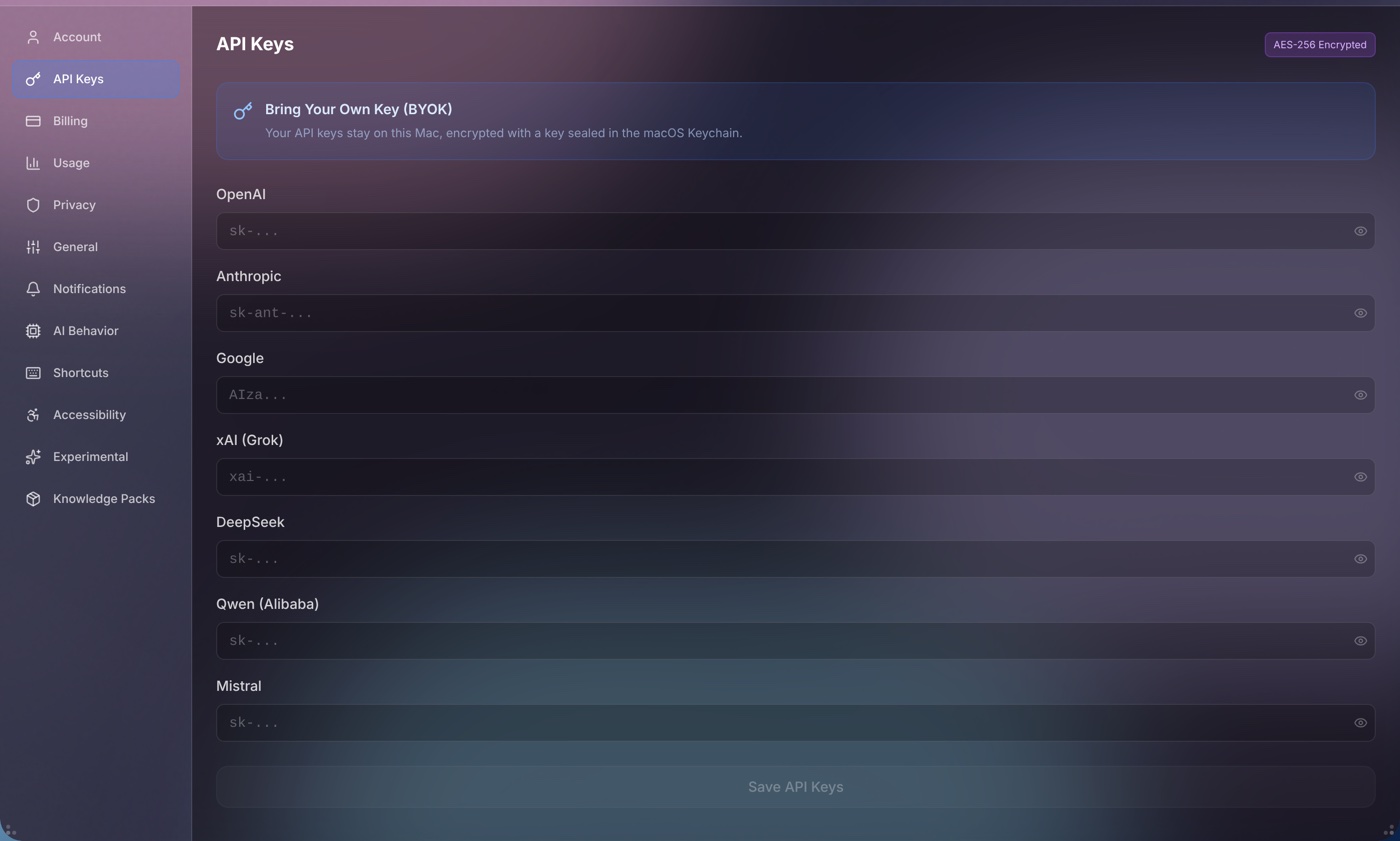
BYOK (Bring Your Own Key) lets you use your own API keys from AI providers. When you use BYOK, messages go through your own API key and don't consume OverShoulder credits.
How to set up BYOK
- Open Settings → API Keys.
- You'll see seven providers: OpenAI, Anthropic, Google, xAI (Grok), DeepSeek, Qwen (Alibaba) and Mistral.
- Paste your API key into the text field for the provider you want to use.
- Click Save API Keys. OverShoulder checks each key before it saves it.
- When you select a model from that provider, OverShoulder will use your key instead of consuming credits.
Where to get API keys
- Anthropic:
console.anthropic.com→ API Keys - OpenAI:
platform.openai.com→ API Keys - Google:
aistudio.google.com→ API Keys - xAI, DeepSeek, Qwen and Mistral: create a key in that provider's developer console.
Settings: Billing & Credits
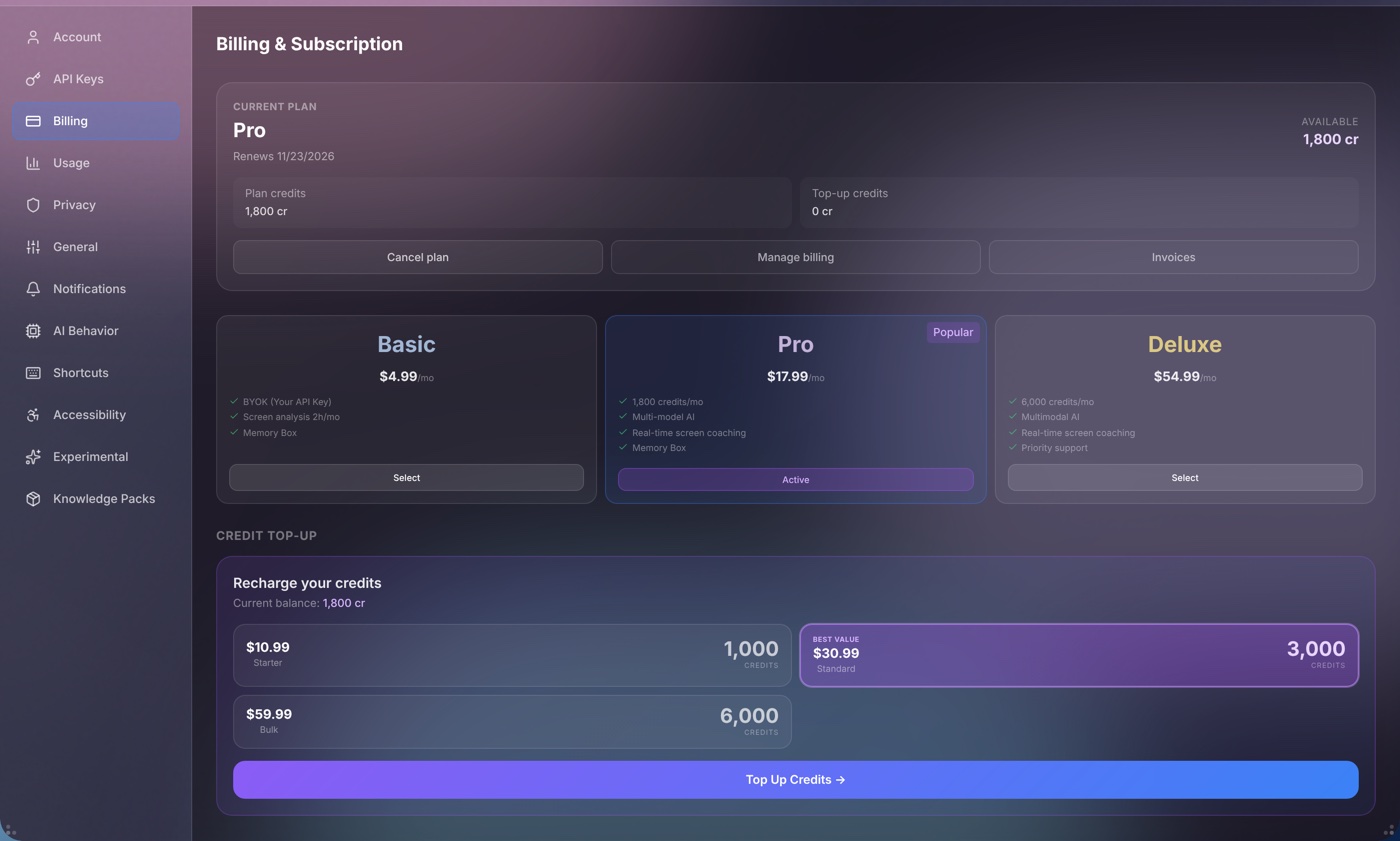
- Current plan — Trial, Basic, Pro or Deluxe, with your available credits split into plan credits and top-up credits.
- Plans — Basic $4.99/month (your own API keys), Pro $17.99/month (1,800 credits) and Deluxe $54.99/month (6,000 credits). Click Select, tick the consent box, then click Checkout. You finish paying in your browser (Lemon Squeezy).
- Credit Top-up — Any account can buy 1,000 credits ($10.99), 3,000 ($30.99) or 6,000 ($59.99). Plan credits are used first, and top-up credits stay. Unused plan credits don't carry over.
- Manage billing, Invoices and Cancel plan — For a paid plan.
Settings: Usage
Choose Today, 7D or 30D. Usage shows:
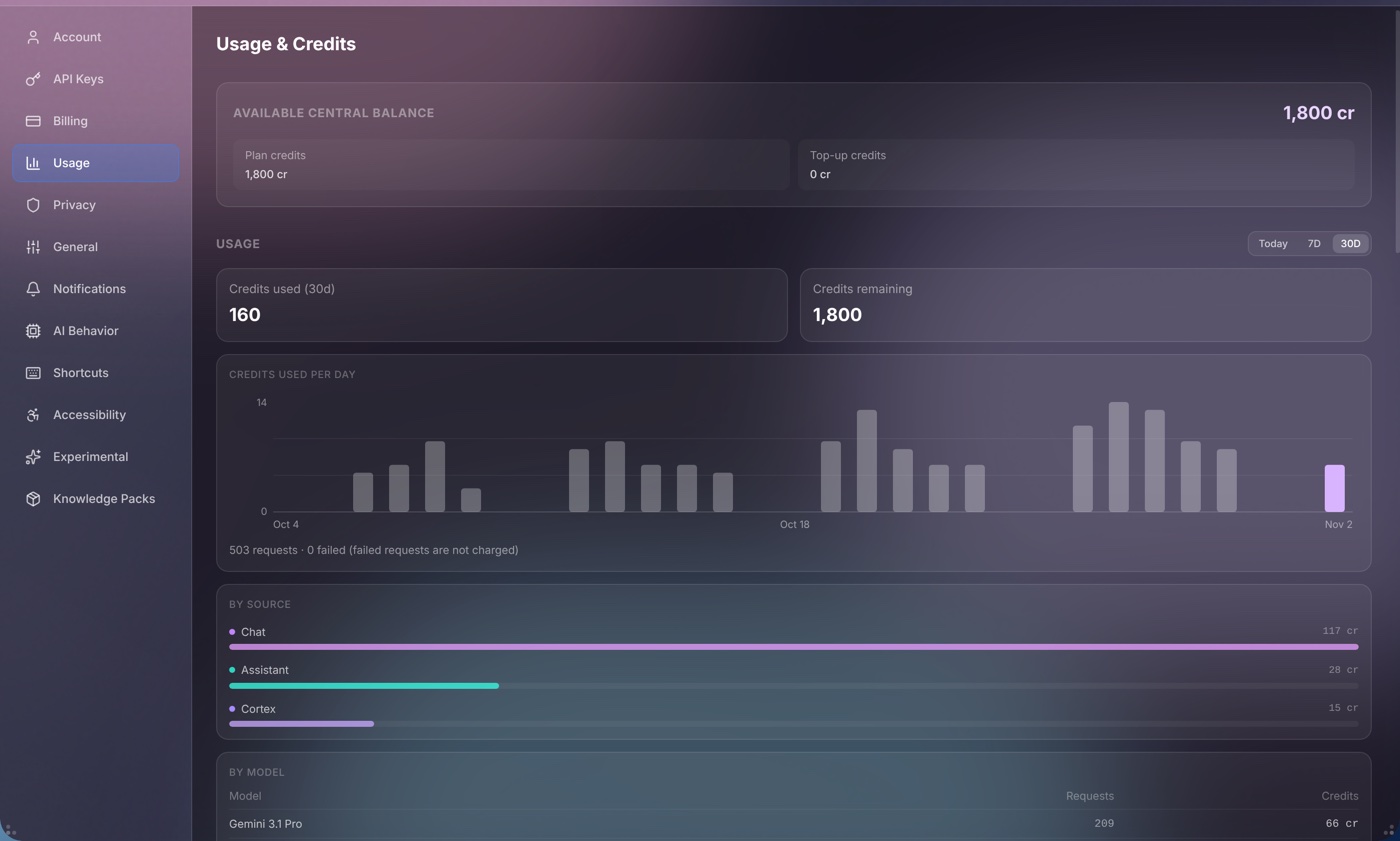
- Credits — Credits used and remaining, and credits used per day.
- By Source and By Model — Where your credits went.
- Recent Activity — Each request and what it cost.
- Credit Cost per Model and Screen Coaching Cost — Estimates before you ask.
Settings: Privacy
Control how OverShoulder handles your data. See Privacy Modes below for detailed explanations.
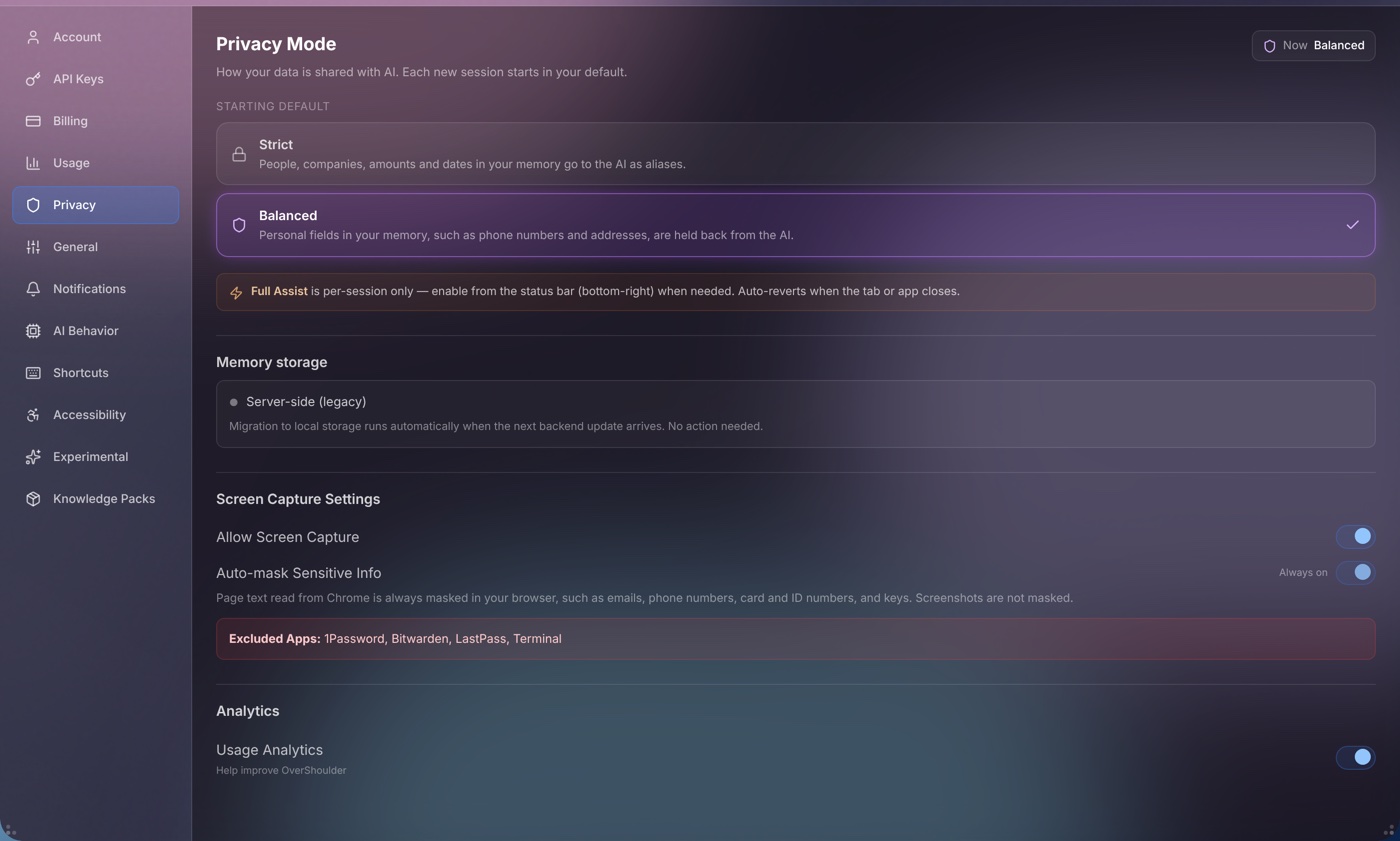
- Privacy Mode — The mode each new chat tab starts in: Strict or Balanced. Full Assist is for one session only; turn it on from the status bar.
- Allow Screen Capture — Turn it off to block screen sharing entirely.
- Auto-mask Sensitive Info — Always on, and locked. Page text read from Chrome is always masked in your browser, such as emails, phone numbers, card and ID numbers, and keys. Screenshots are not masked.
- Usage Analytics — Turns product analytics off.

Settings: General
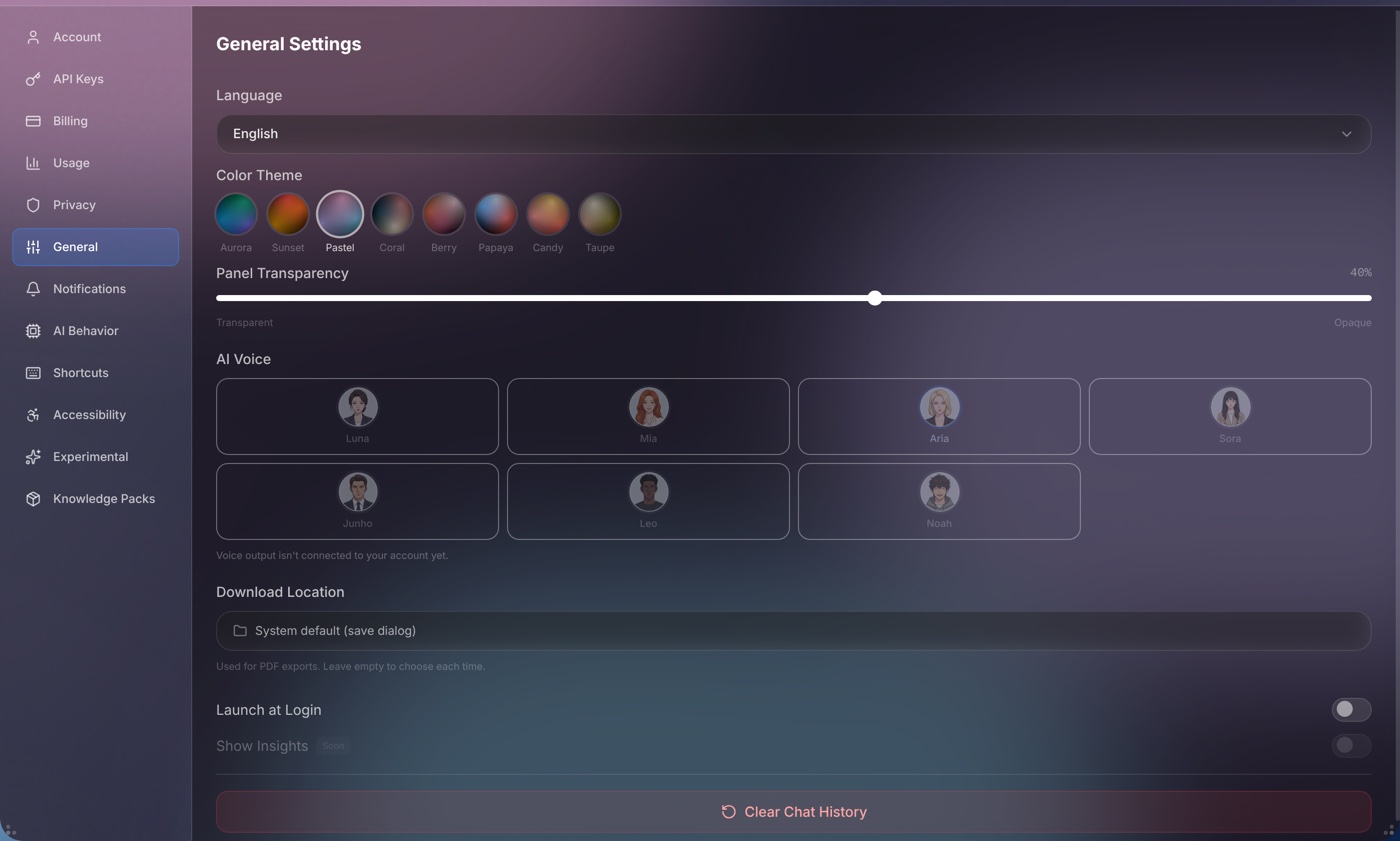
- Language — The interface language: English, Korean or Japanese. The AI answers in the language you write in; this setting is used only when it can't tell.
- Color Theme — Aurora, Sunset, Pastel, Coral, Berry, Papaya, Candy or Taupe.
- Panel Transparency — Adjust how transparent the floating panel is. Higher transparency lets you see more of the app behind it.
- Coming soonAI Voice — The voice for spoken replies.
- Download Location — Where PDF exports are saved. Leave it empty to choose each time.
- Launch at Login — Automatically start OverShoulder when you log into macOS.
- Clear Chat History — Deletes all tabs and their messages. This can't be undone.
Settings: Notifications
Notifications show on this Mac while OverShoulder is running.
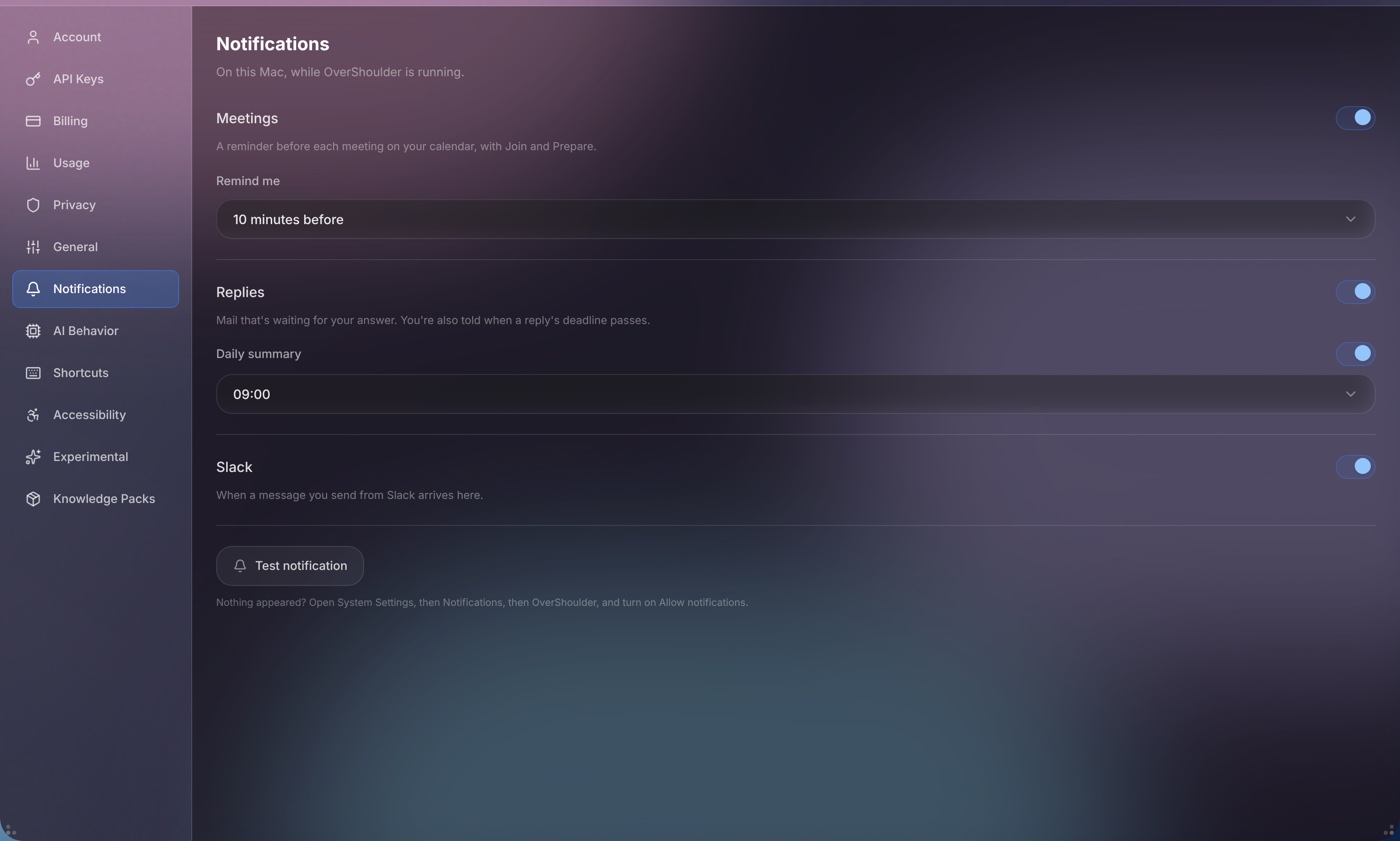
- Meetings — A reminder before each meeting on your calendar, with Join and Prepare. Choose when: when it starts, or 5, 10, 15 or 30 minutes before.
- Coming soonReplies — Mail that's waiting for your answer. You're also told when a reply's deadline passes.
- Coming soonSlack — When a message you send from Slack arrives in OverShoulder.
- Daily summary — Pick a time from 06:00 to 12:00.
If a test notification doesn't appear, open System Settings → Notifications → OverShoulder and turn on Allow notifications.
Settings: AI Behavior
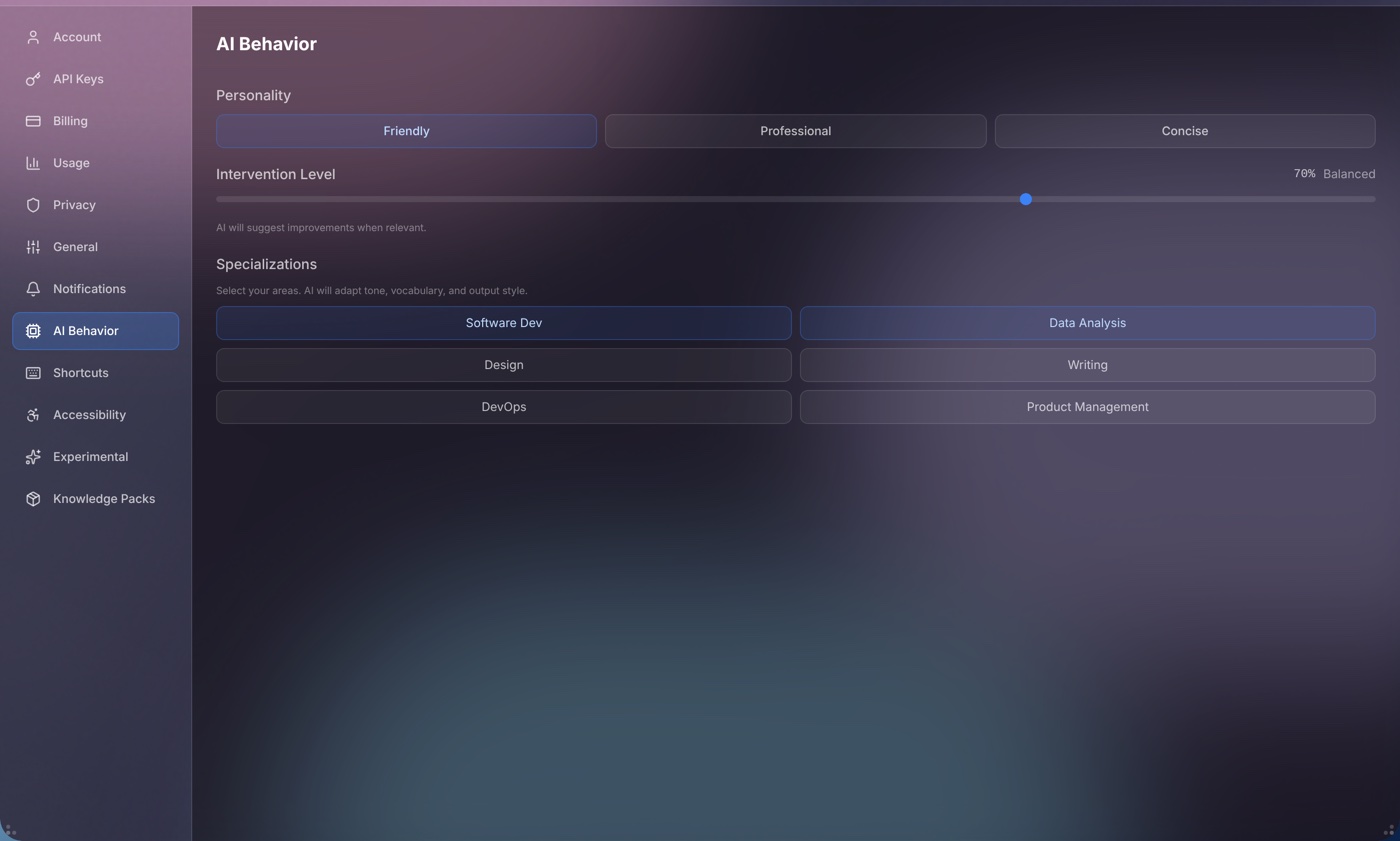
- Personality — Friendly, Professional or Concise.
- Intervention Level — How often OverShoulder speaks up while you share your screen.
- Specializations — Your fields of work. The AI adapts its tone, words and style.
Privacy Modes
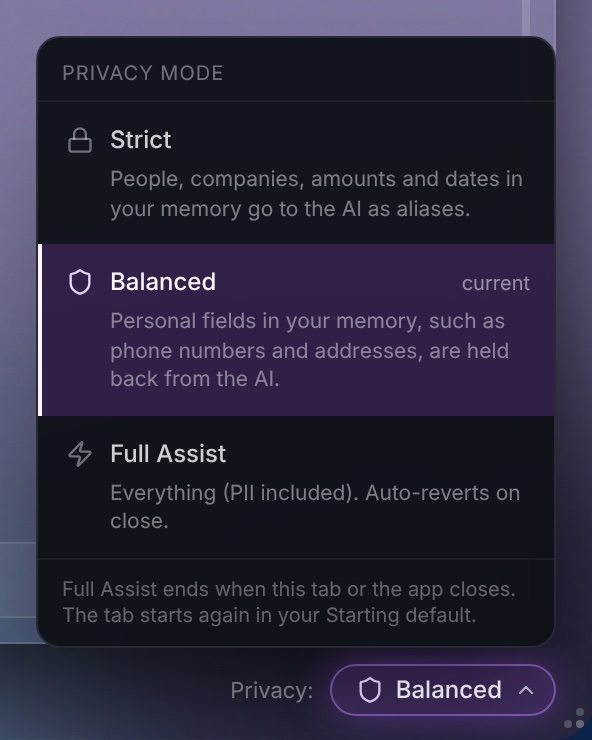
Privacy modes decide how much of your memory OverShoulder shares with the AI. Each chat tab has its own mode.
Most masking. Memory is anonymized before it's sent.
- People, companies, amounts, dates, email addresses, phone numbers, addresses and links that OverShoulder knows are replaced with aliases. Other personal details, such as ID and card numbers, are removed.
- The answer shows the real names again.
- Best for: Working with highly confidential documents, financial data, or sensitive business information
Memory is shared, with personal details removed.
- The AI may read names, companies, amounts, dates and general text from your memory.
- Phone numbers, Social Security and resident registration numbers, card numbers, addresses and medical records are removed.
- Best for: Most everyday usage. Good balance between privacy and AI quality
Memory is shared as it is, for one session.
- Memory pages are sent without masking, personal details included.
- You confirm a warning first. It ends when you close the tab or the app, and the tab starts again in the mode set in Settings → Privacy.
- Best for: Non-sensitive work where you want the most accurate AI guidance
What gets masked
- Memory pages — Masked on your Mac by your privacy mode, as above. Memory → Privacy lists each AI call that included memory, with what was shared and what was removed.
- Browser Reader pages — Always masked in Chrome before they leave the browser. See Browser Reader.
- Screenshots — Not masked.
How to change your privacy mode
- Click Privacy: at the bottom-right of the panel.
- Pick Strict, Balanced or Full Assist. The change applies to this tab.
- Full Assist asks you to confirm. It ends when you close the tab or the app, and the tab starts again in the mode set in Settings → Privacy.
- To set the mode new tabs start in, use Settings → Privacy.
Where Your Data Lives
Here is where OverShoulder keeps your data, and what leaves your Mac.
On your Mac
- Cortex and memory — Your Cortex index, your memory pages and the privacy log.
- Chat history, connector sign-ins and your own API keys — Encrypted with AES-256-GCM, under a master key sealed in the macOS Keychain.
- Recent questions and answers — A log of your last 1,000 questions and answers (up to 2,000 characters each), with the app and page you were on.
- Meeting notes — And the audio, if you choose to keep it.
- Settings & preferences — Your settings.
On OverShoulder Central (Google Cloud, US)
- Account info — Email, sign-in (a hashed password or Google), plan, credits and usage.
- Knowledge Packs you build — Their text, file names and logo, until you delete the pack. Also the packs you use.
- Skills you share publicly — Their name, description and instructions.
- Slack messages and meeting transcripts — Messages you send to OverShoulder from Slack, and meeting transcripts, wait on Central only until your Mac collects them.
- Ratings — The rating, the reason and the model, never the conversation.
- Billing — Payments go through Lemon Squeezy. OverShoulder never receives full card numbers.
Sent to AI providers and other services
- With each chat request — Your message, the recent conversation, the context OverShoulder found (Cortex passages, memory pages masked by your privacy mode, Knowledge Pack passages, web results and the Browser Reader page) and, while you share your screen, a screenshot. It goes through OverShoulder Central to the provider of the model you chose. For chat requests, Central keeps no prompt, context, screenshot or answer after the request.
- Features with a fixed model — Some features use the same model whatever you chose: saving memory (Gemini 3.8 Flash), the summary of older turns in a long chat (Claude Haiku 5.5), and the key points of meeting briefs and meeting summaries (Claude Sonnet 5).
- Mail for the Agenda — To sort new mail, OverShoulder sends the subject, the addresses and up to the last three messages of a thread through Central to TypeSafe's Jev model, and to Google's Gemini when Jev is unsure or to find events and replies.
- Web searches — For a chat answer that needs current information, the search words go through Central to the chosen model's own web search, and to Tavily when that search gives no answer. The briefing's news and the company notes in meeting briefs search with Tavily.
- Indexing a file — Cortex reads the file on your Mac. Pieces of its text, and images, go through Central to Google's embedding model.
- Voice — Your voice input goes through Central to OpenAI to be written down. Spoken replies are made by Google.
- Meeting recordings — The audio goes through Central to ElevenLabs for the transcript, with Gemini as a fallback.
- Linked pages — When a page linked in a chat has little text, OverShoulder asks Jina AI's reader for it, sending only the page address.
- Send Feedback — Your email and message go to a Google Sheet that the OverShoulder team reads.
- Your own API keys — Requests that use your own key go straight from your Mac to the provider.
Keyboard Shortcuts
The first two shortcuts work from any app, even when OverShoulder isn't focused.
| Shortcut | Action |
|---|---|
| Cmd+Shift+K | Show or hide OverShoulder, from any app |
| Cmd+Shift+; | Voice input, from any app (coming soon) |
| Enter | Send message |
| Shift+Enter | New line in message input |
| Esc | Stop a spoken reply, cancel a voice recording, clear a "/" command, or close the privacy mode dialog |
| Cmd+Q | Quit OverShoulder |
Frequently Asked Questions
Screen sharing starts only when you press ▶ and agree. A screenshot goes to the AI only when you send a message, when OverShoulder checks whether a tip would help, or for an Active Guide step. It passes through OverShoulder Central, which keeps no screenshot after the request. OverShoulder doesn't save screenshots on your Mac. Screenshots are not masked. The AI provider's own policy applies.
Yes. Screen sharing is completely optional. Without it, OverShoulder works as a full-featured AI assistant with Cortex, multiple AI models, Council, Knowledge Packs, Memory Box and multi-tab conversations. You can toggle screen sharing on and off anytime.
Your API keys are encrypted on your Mac (AES-256-GCM, with the master key sealed in the macOS Keychain) and are never sent to OverShoulder. Requests that use your key go straight to the provider.
Every model. The 7-day trial includes 300 credits, and stronger models use them faster. After the trial, choose Basic ($4.99/month, your own API keys), Pro ($17.99/month, 1,800 credits) or Deluxe ($54.99/month, 6,000 credits), or buy a credit pack.
After a chat, OverShoulder saves what matters into your Memory: facts about you, your preferences and a summary. To do this, an AI model reads the chat through OverShoulder Central, which uses credits. Memory stays on your Mac. Later answers include the relevant pages, masked by your privacy mode. To see everything, open Cortex → Memory.
You can delete these in the app. In Cortex, Delete Indexed Data removes what Cortex indexed from a folder, and your files stay. Clear All Memories is in Memory → Conversations. Settings → General → Clear Chat History deletes all chats. To delete a Knowledge Pack, open Manage and click Delete pack. To delete your account, write to support@overshoulder.ai from the email you sign in with.
During the beta, a seat that goes unused for 7 days is released. We email you two days before. Nothing is deleted. To come back, reply to the email we sent you. Signing in, opening the panel or asking anything counts as use.
Not during the beta. OverShoulder runs on macOS 13 or later.
Ready to try it?
Request beta access. Downloads open later in November.
macOS 13 or later · Apple silicon or Intel